|
Forming a Gap between Witness Line and Snap Point |
Scroll |
Sometimes, when you set a dimension, you need the witness line to start at some distance from the snap point. This option is available for all types of linear dimensions (except for a dimension trimmed), for radial and diameter dimensions.
To form a gap, you can:
•set the distance between the dimension snap point and the start of the witness line – witness lines will start at the specified distance from snap points,
•set fixed length of the witness line – when the position of the dimension line is selected, the gap between witness lines and snap points will change while the length of leader lines will remain the same and equal to the selected value.
To implement these methods, use the Gap/Length toggle switch in the Advanced Options section on the Parameter panel. This toggle button and the gap/length input field are displayed on the Parameter toolbar if at least one witness line is drawn for the dimension (see section Configuring Dimension Arrows).
Step-by-step instructions
1.Set the Gap/Length toggle switch to the Gap position (to enter a fixed gap value) or to the Length position (to enter a fixed length value for witness lines).
2.Enter the required gap/length value in the Value field.
If the value in this field is zero, witness lines start at dimension snap points and can have any length.
|
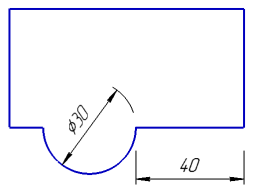
Example of setting linear and diameter dimensions with gap
