|
Context menus and context bars |
Scroll |
To invoke commands, you can use context menus and context bars.
The convenience of working with context menus and panels is provided by grouping commands that are frequently used in different sections of the Main Menu in one place. In addition, invoking of commands is accelerated since the context menu appears on the screen in that place where it was invoked by a mouse click, and the context bar – near the cursor.
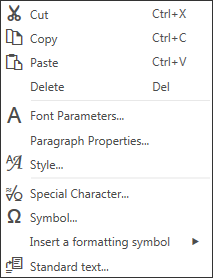
The context menu appears on the screen on clicking the right mouse button. The content of the menu depends on the object to which the cursor was pointed while clicking the mouse button, and on the action run. At the same time, the menu combines commands most typical for this moment of work (see the Figure).
After invoking a command from this menu, it is automatically closed. If it is required to close the menu without invoking a command, press the <Esc>.
|
|
a) |
b) |
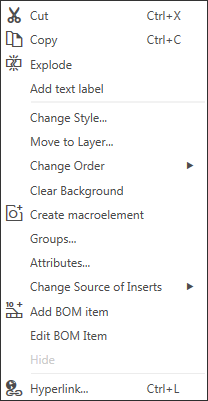
a) for several selected geometric objects,
b) for a selected text tile
The context menus which are displayed while running commands include various controls over the creation of an object (buttons, toggle switches, lists, etc.), buttons to invoke the remaining commands of the group, the buttons for creation of an object and completion of a command, as well as buttons to invoke last used commands.
After running any action in the context menu, it is automatically closed. To close this menu without running a command, press the <Esc>.
|
|
a) |
b) |
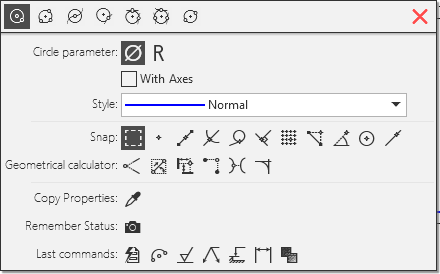
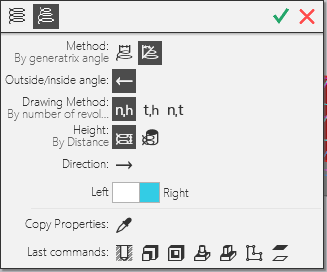
Context menu
a) on building a circle; b) on building a spiral
By default, the context toolbar panel is displayed on the screen:
•on selection of an object in the graphic region of a document,
•on selection of an object in the drawing or model Design Tree,
•on mouse-click in the free area of the document graphic region,
•on invoking the context menu, except cases of invoking the context menu while running a command.
You can configure the order of display of the context bar as well as disable its display in documents of a certain type. To that end, use the Context Toolbar.
|
When selecting a library macro-element, display of the context bar depends on the configuration made in Library Macro-element Editing dialog. On selection of some objects, the display of the context bar is not provided. For example, in graphic documents the context bar is not displayed upon selection of: •designations for civil engineering, •designations for mechanical engineering, except the leader line and designation of position, •jogged radial dimension and height dimension. |

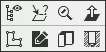
The context bar comprises buttons of the most frequently used commands. The content of a toolbar depends on the type of selected object, on the document type and on the current operation mode. Examples of context bars are shown in the figure.
|
|
a) |
b) |
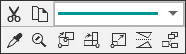
a) a geometric object in a drawing or fragment,
b) a solid face in a part
If required, you can customize the commands in the context bar.
|
In the context bar, buttons displayed only for those commands that are available. |
The context bar is displayed translucently, and on hovering the cursor on it turns opaque. After invoking a command from the context bar it is automatically closed. The context bar also disappears if the cursor is moved away from the selected object.
