|
Multiline Modification Example |
Scroll |
You can add a segment to the beginning and/or middle of the baseline of a multiline by breaking this multiline into parts and creating a new multiline from a new segment (s) and parts of the original multiline.
For example, a multiline with vertices A, B, C, D is built in the document (Fig. a). You need to add curves to the beginning and middle (between the vertices B and C) of this multiline (Fig. b).
|
|
a) |
b) |
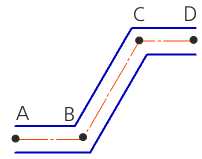
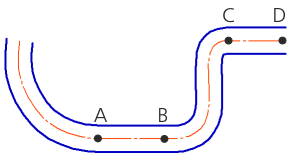
Adding segments to multiline:
a) initial multiline; b) the result of adding
Use the following procedure.
1.Break the multiline into three sections at vertices B and C with the Split the curve  command.
2.Remove the VS area.
3.Build a curve of the desired shape.
|
The end point of the curve must coincide with the initial vertex of the multiline A. |

4.Build the second curve.
|
The starting and ending points of the curve must coincide with vertices B and C. |
5.Run the Multiline  command.
6.Copy the properties of the original multiline to the new multiline.
6.1. Invoke the Copy Properties  command in the Quick Access Panel or from the context menu.
6.2. Indicate the source of properties in the graphic area – any of the parts of the original multiline.
7.Add the constructed objects and parts of the original multiline to the base line of the new multiline.
7.1. In the button group Segment Type, click By Object  .
.
7.2. Specify the objects to add to the baseline: the constructed objects and parts of the original multiline. These objects should be specified by order of their location.
|
To remove objects on which it is built when building a new multiline, enable the Delete Source Objects option on the Parameter Panel. |

