|
Search |
Scroll |
In KOMPAS-3D you can search the Main menu commands by their names.
You should enter the command name to search for in the Command search field which is located in the right part of the Main menu of the system.
Searching is conducted among the commands available when working with a document of the current type in the current mode (i.e. among the commands for those menu items which are currently displayed in the Main menu). For example, the result of searching for the word "line" will be:
•In the model – commands Autoline, Outline, Leader, and Centerline,
•in the sketch mode, the Autoline and Outline commands,
•in a graphic document, the Autoline, Wavy line, Cut Line, Multiline etc.
The search result list displays:
•commands which names contain the entered text,
•commands the path to which in the Main menu contains the entered text.
For each command, the name, the icon (if available), the key shortcut to invoke (if available) and the path to that command in the Main menu are displayed. If the command is not available, then it appears in the found list in light grey color, and in case of a on-off switch command, the state is indicated by the icon color or presence of a "tick".
|
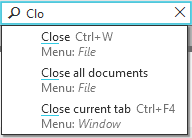
Search commands by name
To run the found command, select it from the resulting list. The system will proceed to performing the command.
•For commands which require additional actions or setting parameters to be performed (for example, Building by objects), — a process will start that allows to perform the required actions/establish parameters.
•For commands which do not require additional actions or setting parameters to be performed (for example, zoom in/out commands), the command will be automatically performed after selecting it from the list.
•For commands which have two states – enabled/disabled (for example, command to control displaying of objects) – the command state will be switched. For such commands the found list will display their current state, for example, as an icon against dark background or as an enabled option (see figure).
|
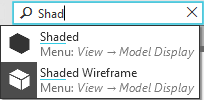
Displaying command states in the found commands list
In the graphic document tree and the Model tree, you can search for objects by name.
The name of the object to search for should be entered in the search field in the top part of the Tree. All objects whose names contain the entered text are displayed in the list of search results.
|
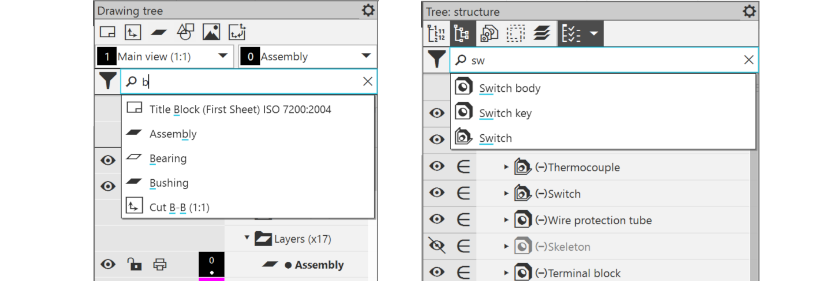
Search in the Drawing tree and in the Model tree
Select the object you need from the list. It will appear in the Document tree. If necessary, the Document tree will be expanded at the needed section and scrolled to display the selected text on the screen.
In addition, while searching you can use filtering, i.e. specifying the type of objects among which you need to search for an object with the given name. To enable one or multiple filters, you need to click Filters  button to the left of the search field, and then click the button corresponding to the required type of objects. This set of buttons is determined by the actual current structure of the document.
|
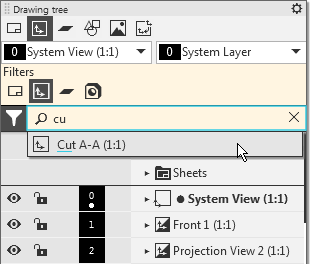
Search in the Drawing tree
|
The object selected in the graphic area can be found in the Document tree using the Show in tree command from the context menu. This possibility is available in the model for all objects, and in a graphic document it is available for those objects which are displayed in the Tree, i.e. views, macro-elements etc. |

Searching in the Variables toolbar
The text to search in the Variables toolbar should be entered in the field in the top part of the toolbar.
All rows whose cells contain the entered text are displayed in the list of search results.
|
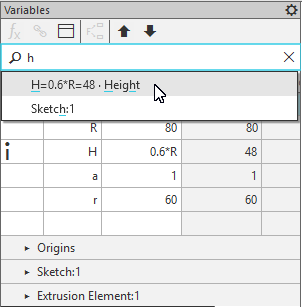
Searching in the Variables toolbar
Select the required row from the list of results. It will be highlighted in the Variables toolbar. If necessary, the list of document variables will be expanded at the needed section and scrolled to display the selected row on the screen.
|
When working with models, you can find an object selected in the Design tree on the Variables bar. For this, use the Show in variable tree command, located in the context menu of the specified object. After calling this command the Variable toolbar is activated. On the toolbar, the section corresponding to the specified object is selected and expanded. The toolbar scrolls to the section, if needed. |
