|
Using fill templates |
Scroll |
The text part of some items can be generated using fill templates. Usually templates are used for filling designation and names of standard items and materials. In general, templates are used to automate the input and sorting of texts formed according to standard rules.
The fill template is a "blank" with fields for entering values of items properties. Based on the data in the template fields, the text is automatically generated in any column of the BOM item. The template also stores Information on by which fields and in what order to sort objects of this type.
The BOM styles supplied as part of the system are configured in such a way that items in their Standard items and Materials sections are created using appropriate filling templates. Let’s look at the process of filling the text part based on the fill template. We’ll use the standard item as the example.
1.When creating an item, specify Standard items section for its placement.
Click on the reference Use template for text part.
2.In the template selection area that appears in the right part of the dialog, specify the desired template (see figure) and click the Apply button in the dialog.
|
Only templates of the objects that can be created in this section are available for selection. For example, in the Standard items section, you cannot specify a template for any material, but you can select a template for filling in the name of a fastener. |

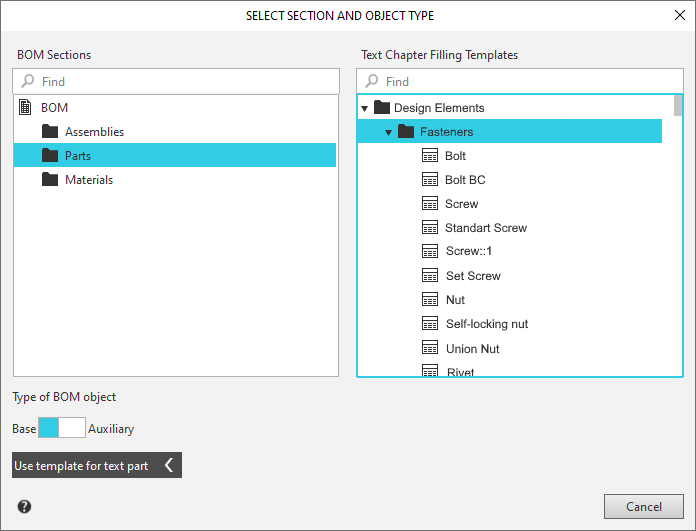
Selecting text template
After then the base BOM item will be created. In its column NAME , the name of the object formed according to the template (in accordance with the standard for the selected type of product) will be automatically transmitted. The default values of the item parameters (for example, the diameter and length of the bolt) will be used.
3.Manually enter the required data into the remaining columns of the item (for example, the number of bolts) and, if necessary, edit the name generated using the template (for example, change the nominal dimensions of the product). See section Editing BOM item text filled by a template.
4.To confirm the item creation press <Ctrl>+<Enter>.
|
If the BOM item is created by inserting an item from the Standard Items application or the Materials and Grades application into the document, then you do not need to select a template. The text part of the BOM item is filled automatically according to the template provided for the item. |
The text part of the items can be filled based on templates not only in the Standard items and Materials sections of standard BOMs, but also in other sections of BOMs of any styles (including custom styles). Not only native KOMPAS–3D templates for filling product and material names and materials can be used; you can also use custom templates of any type (for example, product codes template or company codes template). See section Custom BOM settings.
