|
Editing a caption |
Scroll |
Setting the position of caption using characteristic points
A text caption has defining points of two types.
 The points for moving the label allow to move the label in any direction.
The number of movement points is configured. Possible options are shown in the figure. For more details on this setting, see section Defining points.
 Rotation points for the caption allow you to rotate the caption around the snap point, whose position is determined by the selected method of text placement (see table). Methods of text placement relative to snap point).
The number of rotation points also depends on the placement method: a label placed using the Right-side view or Left-side view method has one rotation point, while the Centered method has two. Points of rotation are displayed outside the dimensional rectangle of text at the level of the first row. E.g. in Figure a) the pivot point is the rightmost point.
|
|
|
a) |
b) |
c) |
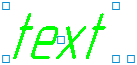

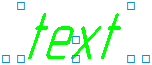
Defining points of a text label:
a) setting option 1, placement method Right,
b) setup variant 2, placement method Left,
c) setup variant 3, placement method – Centered
Activation and movement of defining points are performed as usual (see section Practices of handling defining points).
Changing text and caption position
To change the text and parameters of caption placement, do the following actions.
1.Double-click the required caption. This will start the Add Text, and the text of the labels will be available for editing.
2.Edit the text and/or change its parameters. To do this, use all the techniques described in section Working procedures, except for inserts of vertical text and illustrations.
3.To change the caption placement parameters, fetch from its context menu the Edit Location command. The Caption command will be launched (the operation of the command is described in section Creating a Caption), and an annotation snap point will appear in the graphic region.
4.Change the required parameters of caption location: slope angle for the text rows, a method of text placement relative to the snap point, the type of text display – normal or mirrored.
At the last stage, in the graphic region of document specify the position of snap point, or set its coordinates. The system will return to the text input mode.
5.Confirm the changes made by clicking the Create item  button or by clicking outside the text editing frame.
Application of edit commands to a caption
The following editing commands can be applied to captions:
•Offset (see section Shift),
•Rotation (see section Rotation,
•Symmetry (see section Mirroring),
•Copy (see section Commands to copy objects).
