|
Hyperlinks display and activation |
Scroll |
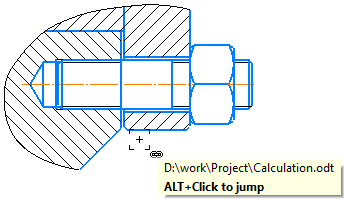
The appearance of the object after creating a hyperlink does not change. When you hover over an object containing a hyperlink, a pop-up tooltip appears on the screen, which displays information specific to each type of link: the path to the file, or the web address, or the name of the element in the document, or an email address.
To activate a hyperlink, click the object holding the <Alt> key. The mouse pointer will take the shape of the link pointer  . After activating the hyperlink, the hyperlink target object appears on the screen — open file, folder or web page, current document area, email creation window.
|
The hyperlink information is displayed in the object properties table (see the section Changing parameters of objects of a graphic document).
A list of all external hyperlinks of the current document is contained in the Document Information dialog on the External References tab. To invoke this dialog, use the Document Information command.
