|
Isolation mode |
Scroll |
How to enable the mode
To enable the isolation mode, the following methods are used:
•Call Isolate objects  . The command is available if at least one component, mating, array, copy of geometric objects, detailing geometry, etc. is selected. To select an object for isolation, select it (or any object within it) in the Design Tree or in the graphic area.
•You can also isolate individual bodies and surfaces, provided they were created directly in the current model.

•Enable the Isolate option when executing the Select — Select nearest command. The command allows for selecting assembly components based on their proximity to an already specified component and, if necessary, isolating them.
After enabling the mode, the selected components will remain visible in the graphic area, and the other objects will no longer be displayed. The isolation mode icon  will appear in the model graphics area.
When switching to the isolation mode, keep in mind the following:
•if the command was run for a subassembly, the entire subassembly is isolated;
if the command was run after selecting separate components of the subassembly, only the selected components are isolated,
•if the command was called for pairing, then the components involved in this pairing are isolated,
•If, when calling the command, an operation in the Tree or a primitive (face, edge, vertex) in the graphics area was selected, then the object containing this operation/primitive is isolated: a component or a body/surface belonging to the current model,
•if a primitive (face, edge, vertex) was selected in the graphic area when the command was called, the object (component or solid/surface belonging to the model itself) comprising the selected primitive is isolated.
|
When you isolate the current model's bodies/surfaces, all other bodies/surfaces, as well as polygonal objects and components, if any, are hidden. Other objects in the same model—sketches, construction axes and planes, designations, curves, etc.— remain visible. |

The figures show the selection of components to be isolated and the result of the Isolate objects command.
|
|
a) |
b) |
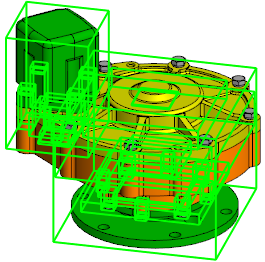
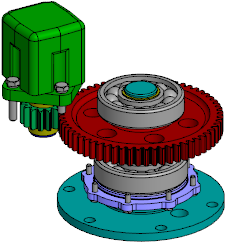
To enable isolation mode using the Isolate Objects command:
a) selection of objects for isolation, b) result
Features of working in the mode
In Isolation mode, you can work with isolated components, perform any object construction operations, measure, and so on.
In the Design tree, the names and icons of isolated components are black, while hidden components are gray. When a hidden component is selected in the Design Tree, its bounding box is displayed in the graphic area.
The Visible and Hidden icons are not displayed in object rows in the Design Tree while in Isolation mode. To control component visibility, use the Add to Isolation and Delete from Isolation commands in the component's context menu in the Design tree. After you select one of these commands for a component, the other command appears in its context menu.
To show a hidden component, select it in the Design Tree and select Add to Isolation from the context menu.
To hide a component, select it in the Design Tree and select Remove from isolation from the context menu.
Note that in the isolation mode the value of the property Visibility set for the model objects does not change. If a hidden component was selected for isolation, then after switching to the isolation mode it does not become visible. To enable the display of such a component, invoke the Show command from the component context menu in the Design Tree.
Closing the mode
To complete your work in the isolation mode, do one of the following actions:
•Click Isolate Objects on the Quick Access toolbar,
•click the mode icon in the graphic area,
•call the Isolate Objects command from the View menu.
After you exit the isolation mode, visibility of objects is restored.
Changes made while working in this mode are saved after you exit it.
