|
Using Libraries of Elements |
Scroll |
You can work with libraries on the Libraries toolbar. Start the Settings – Bars – Libraries command to enable/disable the panel display.
|
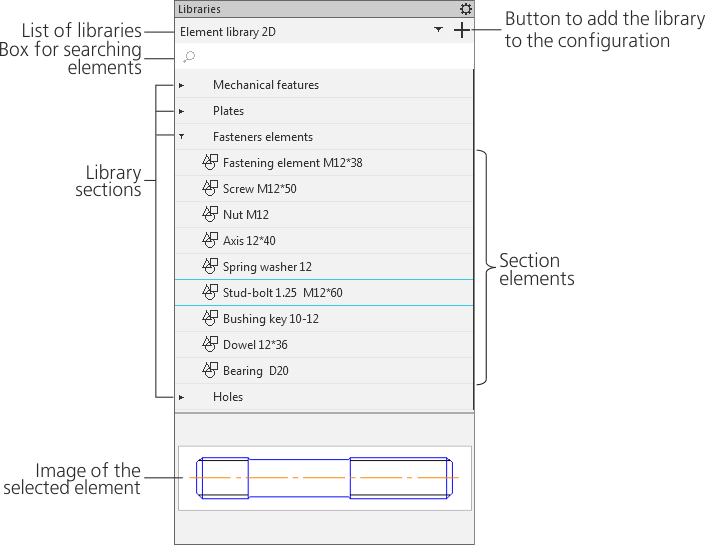
The list of libraries is located at the top of the Bar. It contains all libraries included in the configuration. If the name of the library is displayed in the list, it is currently active.
Below the library list, there is a search box for searching elements in the library by name.
The library structure is displayed below the search box: names of sections and elements. To expand (minimize) the section, click the  (
( ) icon to the left of the section name.
The image of the selected element is displayed in the bottom part of the Bar.
|
The library structure displays only those elements (and sections containing them) which can be inserted into the current document. For example, when working with a drawing, library fragments are displayed, while models are not. |

You can insert an element in the document from the library using one of the following methods:
•double click the element,
•drag-and-drop the element from the Libraries bar to a graphic area using your mouse.
Insertion of a fragment, bitmap image, part or assembly from the library starts the respective process: fragment insertion, picture insertion,, specifying component placement parameters.
When you insert a standard text from the library, it is placed at the current cursor position.
To insert elements from another library, you should enable it, i.e. select its name in the list. If the desired library is not available in the configuration, add it by pressing the Add element libraries  button to the right of the list, and then activate.
