|
Report styles dialog |
Scroll |
Allows you to create, browse, edit styles stored in the library, as well as edit the structure of libraries, copy and move styles from one library to another.

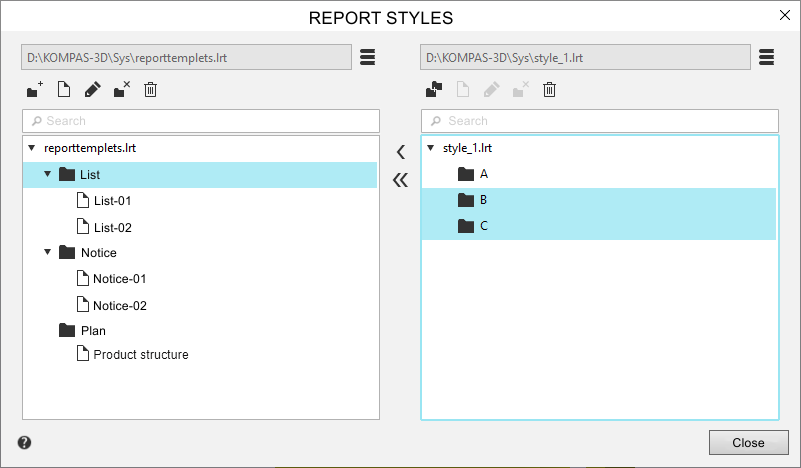
The dialog contains two viewports, which can simultaneously display style lists from two different libraries. To perform various actions in a viewport, click it to activate it. Selecting a style in the style list makes the controls for working with it available. Style lists are structured as a tree—sections, subsections, and so on—containing styles. All objects in the tree are automatically sorted by name within each section.
Above each dialog box is a search field where you can search for a style by name. To find the desired style, enter the desired characters in the search field, then select the desired string from the list of search results that appears.
Description of controls
The element |
Description |
|
|
Show Library |
Allows you to display in the active window a list of styles stored in the library, as well as create a new library. After clicking the button, a dialog appears on the screen in which you need to specify the name of the style library file. |
|
Create section |
Allows you to add a new section to the style library. After clicking the button, a dialog box appears asking you to enter a name for the new section. To combine multiple styles and/or sections into a section, select them in the list and click the Combine into section button (this button will appear in place of the Create Section button). |
|
Create a report style |
Allows you to create a new style in the current library section. After clicking the button, a dialog box appears on the screen, prompting you to complete the steps to create a new style. |
|
Preview |
Allows you to preview a selected style that is not editable. After clicking the button (or double-clicking the style), a dialog box for setting the style's parameters appears in preview mode. |
|
Edit |
Allows you to edit the selected object – section name (subsection) or style. When you press this button: •if a section has been selected – the dialog for creating and editing its name; •if style was selected — the dialog for creating and editing a style. |
|
Destroy section |
To delete a section, select it in the list and click this button. The section icon will be deleted, and the section contents will appear in its place in the list. This button is available only if the selected section is not empty. |
|
Delete |
Allows you to delete the selected style or section. The section is deleted along with all the styles in it. Attention! Restoring a deleted style or library section is not possible. |
|
Copy to the left/to the right |
Allows the exchange of styles or sections between libraries. After clicking the button, the selected style or section is copied to the next window in the section that is current in it. Buttons are available if the library is open in the inactive preview window. |
|
Move to the left/to the right |
Allows you to transfer styles or sections from one library to another. After you click the button, the selected style or section is transferred to the current section of the neighboring window. Buttons are available if the library is open in the inactive preview window. |


To complete the dialog, click Exit.
