|
Layer filter dialog |
Scroll |
The dialog allows you to set conditions for filtering layers in graphic document.

 from the context menu of a drawing/fragment or view,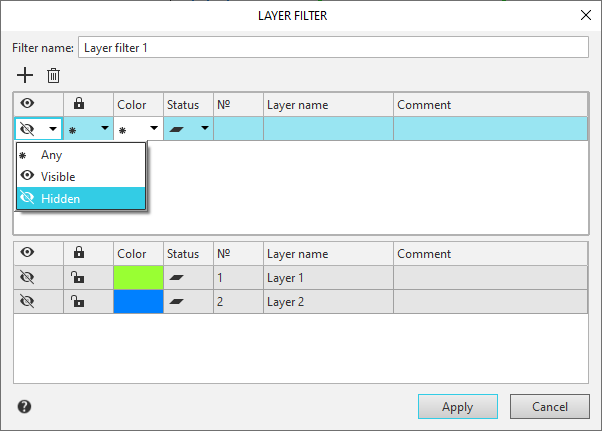
The dialog contains two windows — upper and lower.
•In the upper window a set of layer filtering conditions is formed in the form of a table. The table contains columns with properties — the names of properties are in the upper row of the table. The next rows of the table are used to set filtering conditions. The values of the Visibility, Activity, Status and Color properties are selected from the list (for color — from the palette) that appears after clicking the triangle in the corresponding cell. For the properties №, Layer name and Comment you can enter symbols that are the filtering condition.
More information about setting filtering conditions...
•Lower window of the dialog box is used to view the list of layers that satisfy the specified filtering conditions. The list changes dynamically when the filtering conditions are changed.
The dialog allows sorting layers by number, layer name or comment.
To select a column for sorting, click its name, and to change the sorting direction — click the triangle appearing to the right of the column name.
Controls description
Name |
Description |
|
Filter name |
The field allows you to specify the name of the filter. By default, the created filter is given a name consisting of the word «Filter», to which a sequence number is added. |
|
|
Add |
This button to add a row with a filtering condition to the table.. |
|
Delete |
The button allows you to exclude the selected row with a filtering condition from the table. |


To finish creating/modifying the filter, click the Apply button. To close the dialog box, rejecting the changes made, click Cancel.
