|
Opening and closing documents |
Scroll |
Step-by-step instructions
1.Invoke the File — Open  command.
2.In the file open dialog that appears choose the file name and press the Open button.
The selected document will be opened in KOMPAS-3D in a separate tab.
|
The Open command also allows Import In the format KOMPAS-3D documents created in other applications. Importing is similar to opening: you should select the file type first, and then specify the file itself. |

If you try to open an already loaded document, KOMPAS-3D will not perform a repeated opening, but will simply activate the tab of this document in the current window or the KOMPAS-3D window with this document, if it is opened in a separate window.
|
If you try to open the document that is already loaded, using the alternative path (for example, if you try to open from network location the same file that is stored locally and is already loaded in the current working session), the message appears on the screen: The file is already being edited. |
If multiple files are selected to be opened, a message is displayed In the bottom right-hand corner of the graphic area. It displays the complete name of the document file you're currently opening and the loading indicator. The link Cancel in this message allows you to cancel the loading of the remaining documents in the group (i.e. those documents whose loading has not yet started).
|
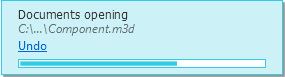
Opening documents indicator
Additional Methods for Opening Files
•If you opened a document recently and closed it, you can re-open that document by selecting it from the File — Recent menu.
•To open documents, you can use the Start page  was indicated at the beginning of the row of tabs. This menu also contains the Open button and the list of recently opened documents.
•>You can open a document by dragging and dropping it in the window of KOMPAS-3D. Specify a document file (files) in the Explorer and drag it using the mouse. When the cursor is placed over the window KOMPAS-3D, it will be filled. Highlight Color, a window will open showing the label Open. To open the document, release the mouse button.
When dragging a model file into the KOMPAS-3D window with the current assembly document, you can either open the model or insert it into the assembly as a component.
•If you cannot open the selected KOMPAS-document or problems occur after you open it, you can try to fix the document by opening it using the File — Open with Verification command. More details about opening with verification...You can open a document by dragging and dropping the file from Windows Explorer into the KOMPAS-3D window. Specify a document file (files) in the Explorer and drag it using the mouse. When the cursor is placed over the window KOMPAS-3D, it will be filled Highlight Color, a message Open will appear in it. To open the document, release the mouse button.
•If the selected KOMPAS document cannot be opened (an attempt to open it produces the message "Invalid file structure...", or no message is issued, or abnormal termination occurs in KOMPAS-3D Viewer), you can try to fix errors in this document by opening it using the File – Open with Checking command. If the processing was done successfully, the file is opened.
Sequential viewing of documents
When viewing KOMPAS-documents using KOMPAS-3D you can open documents located in the same folder one by one without using the File — Open command or Windows Explorer.
To switch from one document to another, use the commands Previous Document  and Next Document
  . In addition, to navigate between documents you can use keyboard shortcuts: <Ctrl> + <Page up> and <Ctrl> + <Page down>.
When the Previous Document command is invoked, the previous document relative to the current one will be opened in the active window. Conversely, when the Next Document command is invoked, the subsequent document will be opened. This closes the current document.
If the viewed document is being edited in KOMPAS-3D, you can reflect the changes you made (provided that they are saved) in the KOMPAS-3D window.
To do this, run the Reread file command. The current document will be re–opened in the same window.
If you have KOMPAS–3D system installed at your workplace, you can open the current document for editing in this system.
To do this, run the File – Edit in KOMPAS command.
You can close the current document using one of the following methods.
•Invoke the File – Close command.
•Invoke the Window — Close current tab command.
•Click the "x" icon in the document tab header.
•Invoke the Close command from the document tab context menu.
If necessary, you can close all opened documents by invoking one of the following commands of the File menu:
•Close all documents (the command is also available in the context menu of the document tab) — all open documents will be closed,
•Exit — all open documents will be closed, all unsaved documents will be saved, and the working session with KOMPAS-3D will end.
If the document contains changes which were not saved, a request to save the document being closed will appear on the screen.
