|
Specifying properties for several arbitrarily selected parts |
Scroll |
In the Product composition panel, you can select several arbitrary parts and at the same time set them to the same property value.
To select multiple parts in the part composition panel, click on them with the mouse while holding down the <Ctrl> key . To select a range, hold down the <Shift> key and click on the first and last line of the range. You can also select a range using the <Shift> + <↑>/<↓> key combinations.
|
Component parts that are represented by components can also be highlighted in the Model tree - their rows will also be highlighted in the Product composition panel. |

The properties of the selected parts are edited in the column header row. Column headers whose values can be edited for at least one of the selected parts are replaced by links. Clicking on this link allows you to go to the editing of the corresponding property, see figure. In the column headers, where a value is supposed to be selected from a list or a custom menu, controls for accessing the list or menu appear in addition to the link.
|
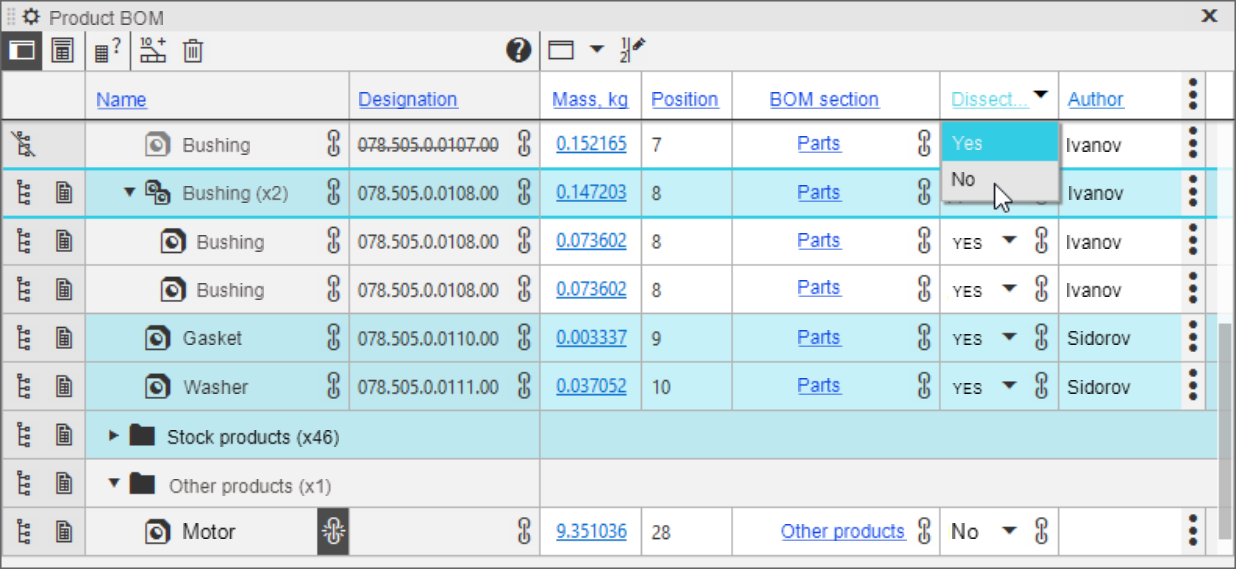
Changing the «Dissect at cuts» property for multiple selected component parts
The value specified in the column header is transferred to those cells of this column that belong to the selected rows, i.e. it is assigned to the selected constituent parts.
If an editable property cannot be changed for any of the selected components, the value in the corresponding cell remains the same. For example, for components with incomplete load, it is not possible to change all or some properties (depends on the selected load type).
Procedure for setting property values
In general, you can enter property values in the usual way - as described in the section Specifying properties of parts and components. The differences are as follows:
•You cannot set a property to a value that is a reference to another document object.
•Work in the CMP dialog box that appears when you change the values of the properties Material, Mass, Density:
•the Calculation method list contains only those options that can be applied to each of the selected constituent parts (thus, if selected component part without visualization, then the method of calculating the CMP cannot be changed),
•coordinates of the center of mass and moments of inertia are not available (when working with a separate component, these parameters can be entered if the method of calculating the CMP by source mass or by mass is selected).
|
When working with versions, there is an additional limitation: it is not possible to simultaneously change the quantities per execution for the allocated component parts. |

Other actions with a set of constituent parts
Context menu of selected lines — depending on which column it is called for, as well as on the current parameters of the selected components — may contain the following commands:
•Exclude from the product / Include in the product — control the insertion of the component part into the product. After calling one of them, the icon  in the Control area (on the left side of the Product composition panel) changes to
  or vice versa.
•Include in current specification description / Exclude from current OM description — control the entry of the component part into the current specification description. After calling one of them the icon  in the Control area (on the left side of the Product composition panel) changes to
  or vice versa.
•By source — reconnects the property to the source by retrieving the value from the source file. After calling this command, the icon  in the cells of the column changes to
  .
.
•Send to the source — reconnects the property to the source by passing the value to the source file. After calling this command, the icon in the cells of the column changes to .
•Remove from product composition — deletes the selected component parts from the product.
The following actions are not available for multiple selected constituents:
•document management,
•creating blanks,
•linking to position and other objects.
