|
Data in the form of links |
Scroll |
In the reports located in graphic documents, it is possible to display the contents of report rows in the form of links to the property values in the source document. Such links are created automatically if the Data as References option is enabled in the Parameter Panel when creating the report. They are displayed in the report with the color set for text links (see section Color of text elements).
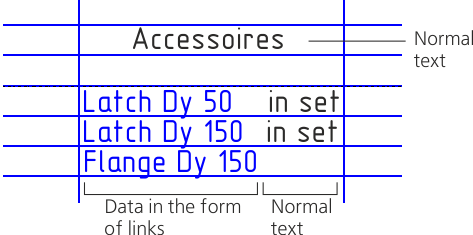 Displaying data in the report as links . Created links cannot be edited manually or destroyed. Before or after the link in the cell, you can enter plain text — an additional caption, designation, special designation, etc. This is possible in the following modes: •in the document — in the table editing mode (see section Tips and tricks); •in the Data Preparation Window — in the report row editing mode (see section Editing a report raw). Data referenced in a report—either in the Data Preparation Window or in a document — may change color.This means that the links need to be updated, or the links have become broken, i.e. their link with the source document or object has been lost. To update the links, rebuild the report. To restore the link, fix the cause of the break. To rebuild a report when working in the Data Preparation Window, use the command Rebuild the table – update according to the style In an associative report, you can perform a refresh with the command Update table (see section Updating tables). Converting links to plain text When working in the Data Preparation Window, you can convert the data presented as links into plain text. To do this, disable the option Data in the form of links in the Parameters panel, and then rebuild the report using the command Rebuild the table – update according to the style The text after conversion is available for editing. If subsequently the option Data in the form of links is enabled again and the report is rebuilt, then the text will become references, and all changes will be lost.
|


