|
Editing objects and deleting leader lines |
Scroll |
Editing an object with a leader line
When you select an object with a leader line, the object defining points and leader lines are displayed (see the Figure). To edit the object, you can use the displacement and rotation points. The attachment point of the leader will remain connected to the object. The leader line itself behaves exactly like a regular leader line when the start point of the landing is moved - it elongates, shortens or rotates.
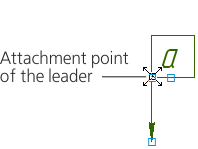
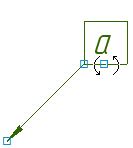
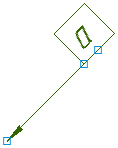
Example of editing an object with leaders
(the attachment point of the leader to the object matches with the displacement point)
To edit an object with a leader, move the defining points of this object using your mouse.
•To change the position of branches, select the object and displace the defining points.
•To change the configuration of a leader, double-click it and add or remove points or branches. Details...
|
After the macro-element is exploded, its leader transforms to a normal leader line. |

To delete the object leader lines, please use the Delete Leader lines command.

This command is available in the shortcut menu if the selected object has a designation created using the Object Leader.
This command results in deletion of all the leader lines of the selected object.
If a macro-element has several leader lines, you can delete one of its leader lines. To do this, enter the Macro-element editing mode, select the leader lines to be deleted and press <Delete>.
