|
Mating a surface with other surfaces |
Scroll |
The borders of the surface which may be used for mating are called the mating borders, and the existing surface to be mated with the new surface is called the mating surface.
The mating surface should contain the entire mating border. You can use the following objects as mating surfaces:
•faces of solids and surfaces,
•construction planes and coordinate planes.
|
A mating surface can consist of several joined faces. |

Along the boundary of conjunction, you can set the following mating conditions: not specified, by tangent, perpendicular and smooth. The availability of conditions depends on the presence of grid curves in the direction opposite to the mating border (i.e., curves having common points with the mating border) and on their location (see the table).
|
Presence and location of the curves |
Availability of mating condition |
|||
Not specified |
By tangent |
Perpendicular |
Smooth |
||
|
no curves |
+ |
+ |
+ |
+ |
|
arbitrarily located |
+ |
- |
- |
- |
|
tangent |
+ |
+ |
- |
- |
|
perpendicular |
+ |
- |
+ |
- |
|
smooth joint |
+ |
+ |
- |
+ |
Generally, a surface by grid of curves has 4 borders. You can use only those which correspond to the borders of mating. The numbers are displayed near the borders in the graphic area.
To set a mating condition along one of the mating borders, please do the following:
1.Press the button of the corresponding border in the Border Number group:
 Border 1,
 Border 2,
 Border 3,
 Border 4.
2.Select the mating surface (or select each face if there are several faces) in the graphic area. The name of the selected object (objects) is displayed in the Surface field.
3.Select the mating condition using the corresponding button in the Condition group:
 Not specified,
 By tangency,
 Perpendicular,
 Smooth.
If a condition cannot be applied to the current border, it won’t be available.
The phantom of the created surface in the graphic area will be rebuilt according to the selected pairing condition, and the designation of the pairing condition will appear near the border number.
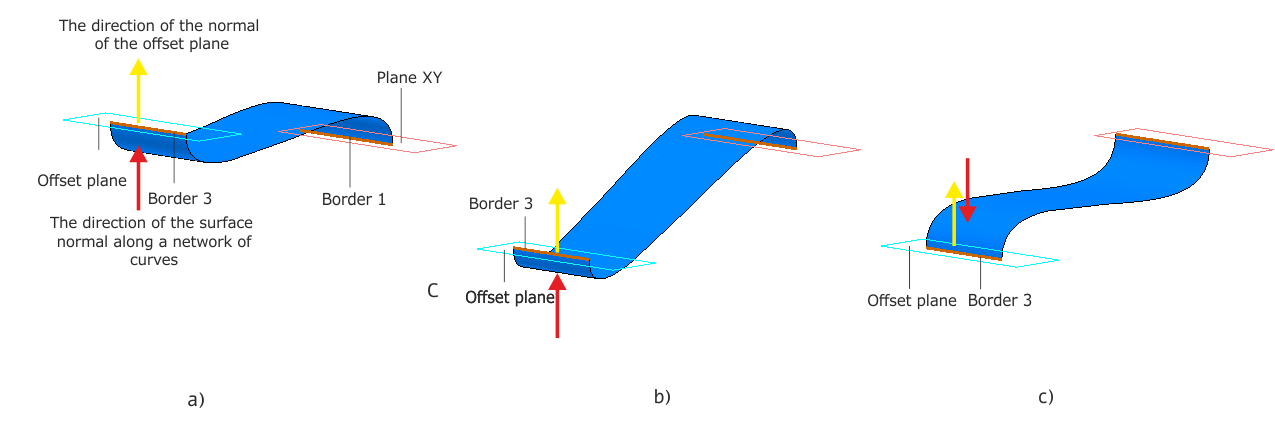
If the curves of the V direction are not set (Border 1 and Border 3 are available), then after selecting the By tangent, Perpendicular or Smooth interface condition, the following controls appear on the Parameter Panel:
•Change direction  — a button that allows you to reverse the direction of the interface along the borders.
•Save direction — the option allows you to save or not save the relative position of the normals /tangents of the mating surfaces when changing the geometric parameters of the interface surface and then rebuilding the model.
Example...