|
Sheet scale fitting |
Scroll |
Sometimes it may be necessary to place the document sheets on a certain number of print pages, and you don’t know the scale of the image on the paper in advance. To fit the scale, use the Fit Scale  command.

Select the document sheets, and then run the command. After running the command, a dialog box for scaling the document sheets appears on the screen:
|
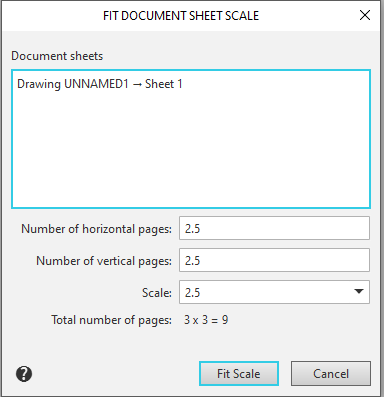
Fit Scale of Document Sheets dialog box
In this dialog box, you can specify the number of pages horizontally and vertically, as well as the zoom level. A description of the dialog box controls is provided in the document zoom dialog box section.
After specifying the necessary settings, click the Fit Scale button.
The scaling center for the selected sheets is the lower-left corner of their bounding rectangle.
|
The gap between sheets scales proportionally. When scaling sheets with different scales, the difference between them is preserved. |

|
It is recommended to select adjacent sheets. Otherwise, scaling of the selected sheets may result in overlapping with other sheets. To find overlapping sheets, you should call the Service — Find overlapping sheets command (see section Searching for overlapping sheets). |

