|
Printing from the main window |
Scroll |
To print the current document, use the Print... command  .
.

After you run the command, the Print document dialog box appears on the screen.
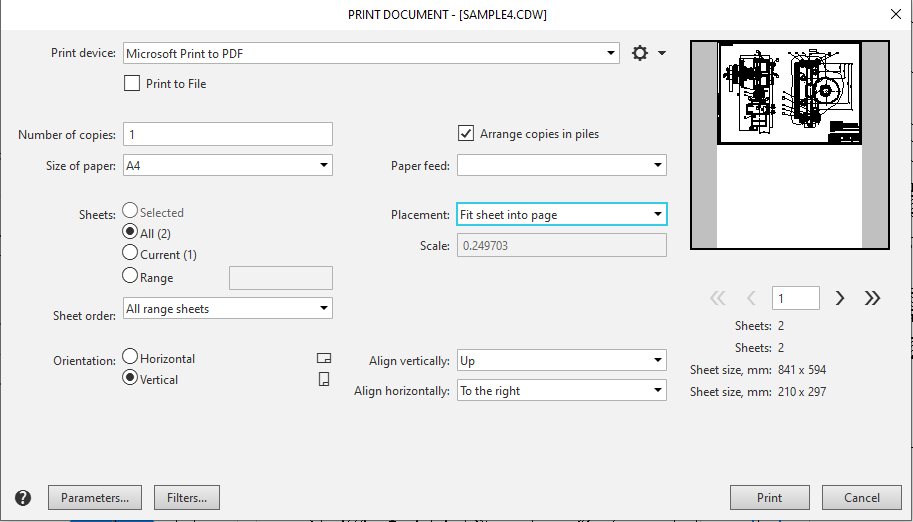
Document print settings dialog box
The dialog controls allow you to configure standard print settings: specify the number of copies, select the pages to print, and so on. If objects were selected in the document before the dialog was opened, the Selected option is automatically selected. This means that the area of the document inside the rectangular frame that encompasses all selected objects will be printed (in the case of a text document, the selected text fragment will be printed). If nothing was selected in the document before opening the dialog, or if a specification is being printed, the Selected option is unavailable.
From the Print device list, select the desired print device (printer or plotter). If you need to configure the print device settings, click the Properties...  button. In addition, the menu for this button allows you to print device configurations, which speeds up the setup of documents with similar settings.
|
The device you've selected to print the document will be used by default for all the documents of the same type in the current session of KOMPAS-3D. |

If necessary, configure additional print settings for the document, such as selecting the color scheme for the printed document. To do this, open the advanced settings dialog by clicking the Paramters... button
The Filters... button allows you to enable or disable printing of document objects based on their type. When you click it, a dialog box for setting print filters appears on the screen.
|
If any items were selected in the drawing or in the text document prior to running the Print dialog, the print filter is automatically disabled (using this filter you can select individual sheet elements to be printed, e.g. borders, title block, etc.). You can enable the filter if needed. In this case, if you print a text document, the entire sheets elements will be printed, and if you print a drawing, only the parts of the elements inside the selection frame will be printed. |
The right side of this dialog box contains the print preview window: the paper sheets are displayed with non-printable areas (margins outside the printing area supported by the printer). One print page can contain one or several sheets of a document (depending on the setting). You can navigate between print pages using the navigation buttons in the bottom of the preview window.
After you've configured the print parameters settings, click Print to start printing the document. Click Cancel to close the dialog box without printing the document.
|
If you have enabled printing to file, then a dialog will appear where you would need to set the name and path of the file |
When working with a multi-sheet graphic document, you can print open just the current sheet. To do that, use the Set printing parameters and print sheet command in the context menu in the graphic area of the drawing. After you run this command, the print parameters settings dialog box will appear. The controls for setting up multi-sheet documents will not be available in the dialog box.
Please note the following when printing documents.
•If a multi-sheet document contains sheets with different orientation, all the sheets will be printed using the orientation of the first page. To choose the right orientation, use the Page orientation group of options in the Print document dialog box. You cannot print documents with sheets of different dimensions from the main window of the software. You should print these documents from the preview mode, (see Section Print Preview).
•The dimensions and designations display in the model are only optimized for the screen but not for printing. When you print a model, the text in dimensions and designations may be too small comparing to the model itself. In this case you'll need to disable the optimization (see section Dimensions and Designations). Change the settings of dimensions and designations in this model by increasing the font height.
•Drawing views may be displayed in the preview window in a simplified manner: as bounding rectangles. It depends on the setting made in the KOMPAS.ini file. Views are printed without simplifications.
