|
Parameters of leader line |
Scroll |
To set the parameters of the leader, elements of the Parameter Toolbar represented in this section are used.
Arrow
The look and feel of the arrow at the end of a branch of the leader line is selected from the Arrow dropdown list. The selected variant applies to all the branches.
The list of arrow types is also available in the right-click menu of the final point of any leader branch.
The list of the arrows which are available for selection and the sequence of arrows in the list is determined by the setup of filter done in the Leader line – Arrow filter section in the dialog for setting up the current document.
The method of building branches of the leader line is selected using the Branches group of buttons.
Method of adding branches |
Design |
|
|
From Landing Start Branches are built from starting point of the landing. |
|
|
From Landing End Branches are built from final point of the landing. |
|
|
From Landing End Branches are built parallel to each other on one or both sides of the landing. Creation of kinks on parallel branches is unavailable. |
|

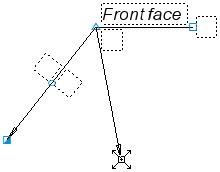
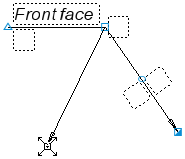

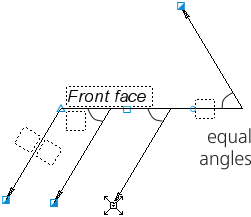
These buttons only affect newly created branches. It is impossible to change the method of building for an already created branch. More details on working with branches...
If the leader line already has branches built using the from landing start/From landing endmethod, then on changing the method of adding of branches to From Landing End it is re-built.
To create a designation with branches from the start and from landing end (see the figure below), do the following actions.
1.Build the required number of branches from landing start.
2.In the Branchings group, press the From the end of the landing  button.
3.Create branches from landing end.
|
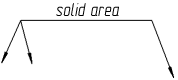
Leader branches from the start and from landing end
|
It is impossible to add the branches From Landing End/From Landing Start and vice versa to branches built using the From Landing End method. |

Display Icon
The look and feel of signage on the leader line is selected using the Core group of buttons. The following options are available:
 No symbol,
 Bonding,
 Soldering,
 Knitting,
 Overlapping,
 Angular junction,
 Field Weld.
Leader Landing
The direction of landing of the leader line is selected using the Leader Landinggroup of buttons. The set of options depends on selected method of building branches.
If the From Landing End or From landing end method of building was selected, then the following options are available in the Leader Landing group:
 To the right,
 To the left,
 Up,
Up,
 Move Down.
If branches are built using the From Landing End method, the following options are available:
 Horizontally,
 Vertically.
The direction of the landing can be changed by scrolling the mouse wheel with the <Ctrl> key pressed and also using the characteristic point at the end of landing. In so doing, switching between the options of placement of signage on the landing will be performed.
Along Contour
To generate the designation of processing the surfaces which form a contour, the Along contour option is used.
|
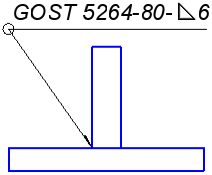
Example of designation of a welded seam over the closed line
