|
Import procedure |
Scroll |
File import procedure
To import a DXF or DWG file into KOMPAS-3D, please do the following:
1.Select Open in the File menu.
The Open File dialog will appear on the screen.
2.In the File Type list, select the desired entry: AutoCAD DWG (*.dwg) or AutoCAD DXF (*.dxf).
3.In the dialog box, select the file to import.
4.Select the required import option: Read into graphic document or Read into model.
5.Run the import process using one of the following methods:
•If you do not need to configure the import settings, click the Open. The selected file will be imported into KOMPAS-3D.
•If you want to check or modify the import settings, please expand Open button menu and select the Open with parameters command from it. Depending on the target document, a dialog of configuring import to a graphic document or to a model will appear on the screen (examples of dialogs are shown in the figures).
Set the reading parameters. Configuration of parameters for a graphic document is described in section Graphic documents import parameters, and for models, in the section Model import parameters.
After completing the configuration, press the Read button (for a graphic document) or Start Reading (for a model). The selected file will be imported into KOMPAS-3D.
|
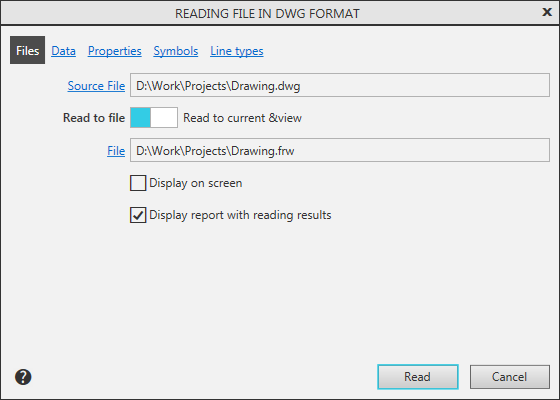
Dialog for configuring import to a graphic document
|
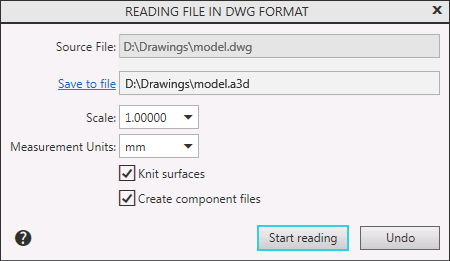
Dialog for configuring import to a model
If the imported file has any errors, please note the following:
•A file may be imported incorrectly due to unsuitable import parameters configuration. Please check the configured parameters (a detailed description of parameters and tips for setting them are provided in this document), change the settings and import the file again.
•Correct import of the file may be impossible if the source file contains errors or objects that cannot be imported. Open the imported file in the corresponding version of AutoCAD to check and correct it.
For example, a document of the DXF or DWG format may contain blocks — combined sets of primitives. Sometimes it isn't possible to correctly import blocks into KOMPAS-3D. If this is the case, please open the file to be imported in the corresponding version of AutoCAD and explode the blocks contained in it (please note that blocks may contain other blocks; these blocks also have to be exploded). Then save the file again and import it into KOMPAS-3D.
•In case of importing *.dxf files saved in graphic software different from AutoCAD, errors may occur at the stage of saving the file to the DXF format, not at the stage of importing it to KOMPAS-3D. To check for this, open the file to be imported in the corresponding version of AutoCAD. If the image looks different from the source software, then the error has occurred when the file was saved to the DXF format.
All the parameters set in the import parameters configuration dialog are saved for future use. This happens after the configuration dialog is closed using the Read/Start Reading button.
The import parameters are saved to the import application configuration file named "dwgdxfImp.cfg". It is located in the same place as the system configuration file KOMPAS.cfg (by default in the folder C:\Users\\AppData\Roaming\Ascon\Kompas-3D\[version]). These settings are used by default for the next import operation.
|
Settings of import from the DXF format are recorded into an application configuration file separately from settings of import from DWG. These two settings are independent from each other. |

|
When importing a graphic document, the configuration dialog contains pages. Symbols and Line types, where you can set up the association between the characters and between the AutoCAD lines and KOMPAS-3D lines. To reuse the established correspondences, you need to save them in a special file — *.acs for symbols and *.als for lines. In the dwgdxfImp.cfg file, these correspondences are not recorded — only the paths to the *.acs and *.als files are written, if they are created. |
If you need to import many DXF or DWG files into KOMPAS-3D, it may take a long while to select and import them one by one. To accelerate the process, you can import files in groups. All the files in a group are imported either to a graphic document or to a model.
You can import files with the same or different settings.
•To import files with the same settings, make sure in advance that the current import parameters ensure the required result. To check that, import one of the files from the group and review the resulting image. If the import result is different from what you need, modify the import parameters and try importing the file again. The modified settings are saved for future use (see above).
Next, select a group of files for import (selecting a group is done in the same way as selecting a single file, see above). To start importing the files, click Open. The selected files will be consecutively imported into KOMPAS-3D with current settings. New KOMPAS-3D files will be automatically created and placed in the same folder with the imported files.
•To import several files with different settings, no preliminary configuration of import parameters is required. Select a group of files to be imported and call the Open with parameters command. The dialog for configuration of import parameters of the first selected file will appear on the screen. Set the required parameters and click the Start Reading. After the file is imported, the dialog for configuration of parameters of the next imported file will appear on the screen and so on, until all the selected files are imported.
