|
Dialog for setting up reading parameters of DXF/DWG files to a KOMPAS-3D graphic document |
Scroll |
The dialog appears on the screen after calling the Open with parameters... command from the Open button menu of the file selection dialog, if a document for reading is specified. DXF or DWG and the option Read into a graphic document are included. More details on the procedure of importing DXF/DWG document into KOMPAS-3D...
The dialog allows you to configure import options.
Files page

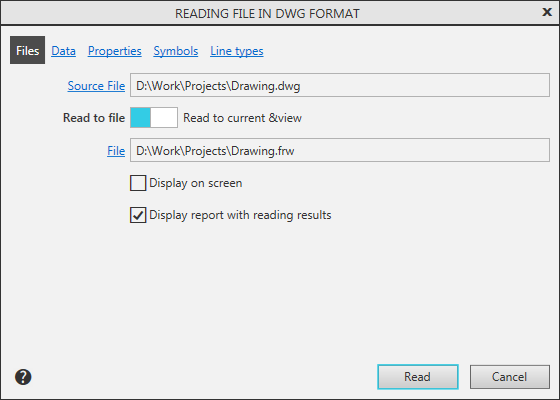
Description of the controls on the Files page
The element |
Description |
|
Source File |
This field displays the name of the file being imported. |
|
Read to file/Read to current view |
Using this toggle switch, specify the option of location the resulting image: in a new document or in the current document. More details on choice of placement option... |
|
File |
To select an existing file, click this link. The file name is displayed in the box to the right. |
|
Display on screen |
Enable this option so that imported objects are displayed on the screen during reading. The option is present on the page when reading to the file. |
|
To Source Layers |
Imported objects will be placed on their layers. If necessary, the necessary layers are created automatically. The option is present on the page when reading in the current view. |
|
To current layer |
All imported objects will be placed on the current layer. The option is present on the page when reading in the current view. |
|
Display report with reading results |
Enable this option to view the list of objects that cannot be imported, and the reasons for the impossibility of import. This information is displayed in Information window. |
Data page
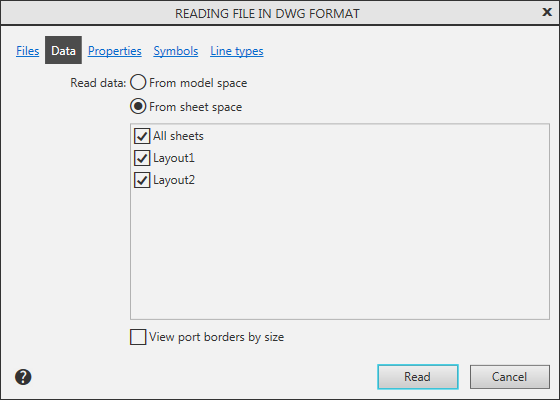
Description of the controls on the Data page
The element |
Description |
|
Read data from model space |
Choose this option if you only need to transfer a graphic image that exists in the AutoCAD model space to the resulting document. Details about reading from model space... |
|
Read data from sheet space |
Select this option if you want to transfer objects from the sheet space to the KOMPAS document. When this import option is selected, a list of layouts is available, in which you can specify which layouts should be imported. More details on reading from sheet space... |
|
List of layouts |
The list allows you to select layouts for import. Enable options that match the layouts to be imported. The list is available if the import option is selected Read data from sheet space. |
|
All sheets |
The option allows you to enable/disable the availability of all layouts contained in the list. |
|
View port borders by dimensions |
Turn this option on to speed up reading by simplifying the shape of the viewports of the imported document to their overall rectangles. Details... |
Properties Page
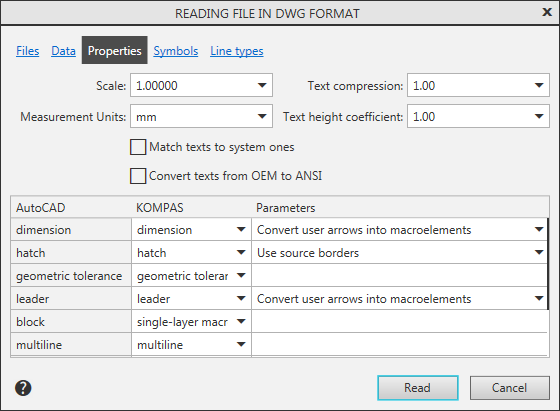
Description of the controls on the Properties page
The element |
Description |
|
Scale |
Select from the list or enter a scaling factor value of the graphic objects. More about zooming in on the image... |
|
Measurement Units |
Select the desired units for the imported objects (millimeters or inches). |
|
Match texts to system ones |
Enable this option so that the texts from the imported file are written with the parameters set in the KOMPAS document by default for the corresponding captions (text in the drawing, text above/below the leader line landing, etc.). More details on matching texts to system ones... |
|
Convert text from OEM to ANSI |
Enable this option if you need to transcode texts from DOS-encoding to Windows-based encoding during import. |
|
Text Spacing |
This option allows you to specify the ratio of the width of the resulting text when importing texts to their width in the original document in order to fit the width of the text to specific dimensions. For more details on setting up text size... |
|
Text height coefficient |
This option allows you to set the ratio of the height of the resulting text when importing to their height in the original document in order to adjust the height of the inscriptions to specific dimensions. |
|
Object matching table |
This table allows you to customize the reading of leader lines, hatches, bitmaps, tables and some other objects written to the DXF/DWG file. In a column Autocad are listed the objects that can be read in the column KOMPAS – variants of objects that can be obtained as a result of reading, and in the column Parameters – options for reading the arrow sizes, leader lines and hatch. The dependence of the reading result on the selected option is described in the following sections: Importing leaders, hatches, geometric tolerances, multilines and dimensions |
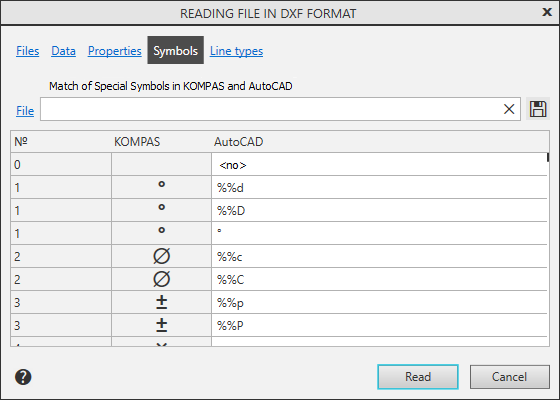
By default, a sequence of characters is loaded, which corresponds to the distribution set KOMPAS-3D file B_ESKD.SHX. You can interactively edit the correspondence between the special characters KOMPAS and ASCII character sequences, which are indicated in the DXF text file.
Description of the controls on the Symbols page
The element |
Description |
|
File |
To connect a previously saved symbol matching file, click this link. More information about Symbol Association Settings... |
|
|
Save to file |
To save the set symbol matching settings in the file, click this button. The system will generate a Character association text file (*.ASS). |
|
By Default |
To load the default symbol matching setting, click this button. |


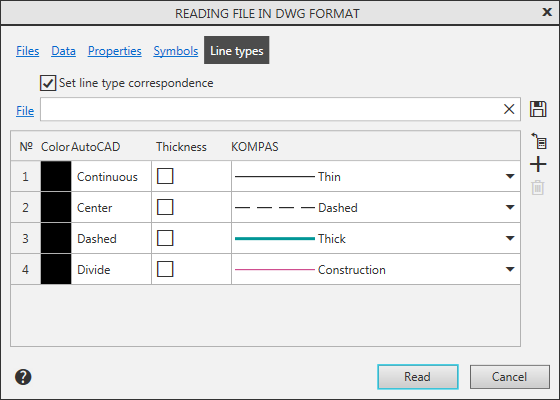
By default, when importing DXF files, in the KOMPAS document custom line styles are created with the same names and appearance as in AutoCAD.
Description of the controls on the Line type page
The element |
Description |
|
File |
Click this link to connect the created or previously saved line types and styles matching file. |
|
|
You can create a line type and line style matching file in text mode and include it when importing DXF files. |
|
|
More details on the configuration of line type and style association... |
|
|
By Default |
To load the default line style and line matching settings, click this button. |
Set line type correspondence |
To enable automatic substitution of AutoCAD lines with system or library KOMPAS lines during import, you need to set up the match between the line types in AutoCAD and the line styles in KOMPAS-3D. To do this, enable this option. After the option is enabled, the remaining options and tab buttons become available. The preview window displays the already existing correspondences between types and line styles: in the column AutoCAD displays the color, the name of the line type and its thickness in AutoCAD, and in the column KOMPAS – the name of the system line style in KOMPAS. |
|
|
Save to file |
To save the made match settings in the file, click this button. In the dialog that appears, specify the name of the file to be written. The system will generate a text file of line type and style association (*.ALS). |
|
Import from AutoCAD drawing |
This button is used to display in the preview window the names of the types of lines used in the AutoCAD drawing chosen for reading, the color and thickness of these lines. The rows corresponding to the line types that are used in objects with default line weight, the thickness value is absent. |
|
Add |
To add a match, click this button. In the added line, enter the name of the AutoCAD line type, its color and thickness, and set the KOMPAS line style. |
|
Delete |
To remove a match, select it in the preview window and click this button. |


After setting the parameters, click Start reading. To exit the dialog without reading the file, click Cancel.
See Also
