|
Dialog for setting up reading parameters of the DXF/DWG file to a KOMPAS-3D model |
Scroll |
The dialog appears on the screen after the command Open with parameters... is called from the Open menu button, displaying a file selection dialog if a document is specified for reading. DXF or DWG and the option Read in the model are enabled. More details on the procedure of importing DXF/DWG document into KOMPAS-3D...
The dialog allows you to configure import options.

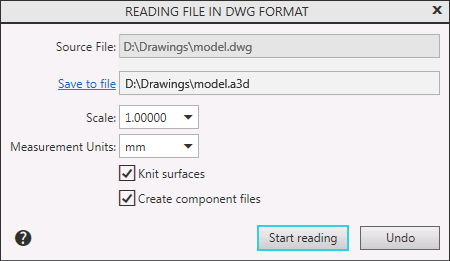
Description of Controls
The element |
Description |
|
Source File |
This field displays the full name of the file to import. |
|
Save to file |
This field displays the full name of the resulting file. By default, the resulting file is located in the same folder and has the same name as the file being imported. You can select another folder and specify another file name, if needed. To do this, enter the desired path in this field or specify the path in the dialog that appears on the screen after you click the name of the field. The extension of the resulting file displayed in the dialog is a3d. However, the result of the import can be either an assembly file (*.a3d), or a part file (*.m3d). This is determined when reading the file. More information about determining the type of the resulting file... |
|
Scale |
Select from the list or enter a scaling factor value for three-dimensional objects. |
|
Measurement Units |
Select the desired units for the imported objects: millimeters or inches. |
|
Knit surfaces |
This option is used to knit surfaces. The state of the option affects only the surfaces and does not affect the solids. •If this setting is enabled, the system will try to merge the imported surfaces. As a result, you can get a larger surface or solid (if the source surface is closed). •If this setting is disabled, the knitting won’t be applied, and the imported surfaces would be similar to the original ones. |
|
Create component files |
The state of the option affects the process of creating components when importing an assembly model: •If the option is enabled, the components are written to separate files and are independent models, •If the option is disabled, the components are stored inside the assembly as local models. |
When you have finished setting the import parameters, click Start Reading at the bottom of the dialog.
