|
Viewing Object Relations |
Scroll |
You can view relations in which an object participates in the Design Tree. To do this, press the Relations  button in the lower part of the Tree and select the required object — the relations hierarchy of the object will be displayed in the lower part of the Tree Panel (see Figure).
If you select another object in the Design Tree, the contents in the hierarchical relation view area changes – it will display objects that are source and derived in relation to the object you just selected.
|
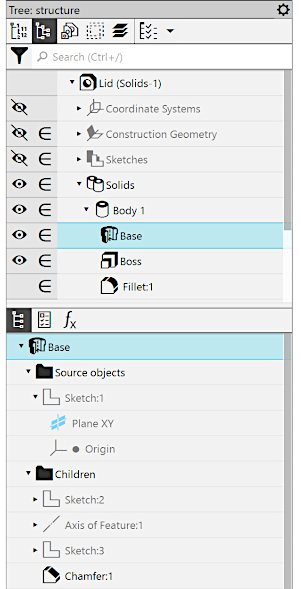
The first row of the relations area displays the name of the element whose relations you are viewing.
Elements included in the hierarchy of the element you are viewing are displayed as structured lists in two sections subordinate to this element. You can expand and close sections in these lists by clicking the  and
and  icons next to their names. You can use the scroll bar to view long lists.
In the Source Objects section a list of the source objects is shown, and in the section Children – of the derived ones. The names of objects in the relations window coincide with their names in the Design Tree (if you entered new names of elements to replace the default names, they will be displayed in the relations window).
At the first level of the source object list, there are elements that are directly source, i. e. directly subordinating the given. If these elements, in turn, are subordinate to other elements, then the next level of the list shows higher source elements.
At the first level of the derived object list, there are elements that are directly subordinate, i. e. directly subordinate to the given. If these elements, in turn, subordinate other elements, then the next level of the list shows the lower derived elements.
Thus, you can trace both direct and indirect subordination in the relations window.
Usually, you may want to know the object hierarchy in order to identify if changing (editing or deleting) of certain objects may directly or indirectly affect the given object, and which objects may be affected by changing the given object.
|
•Context menus of objects, the same as in the Design Tree, are available in the relations view area. From these menus you can run frequently used commands, for example, for editing or deleting objects. •You can view hierarchy of object relations in a separate window of the Design Tree. To do this, select an object in the Design Tree or in the graphic area of the model and run the Relations in Additional Window command from the context menu. |

