|
Additional document tree |
Scroll |
The additional document tree is available in graphic documents and models. It is in the upper left corner of the graphic region and is represents as a Document tree, see the figure.
|
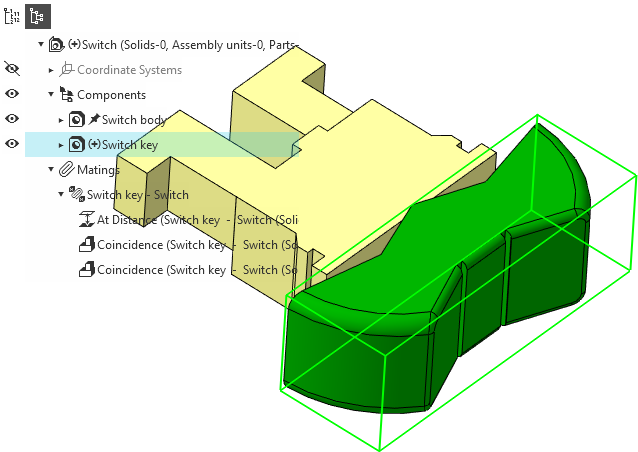
Additional Assembly Design Tree
The additional Tree is used when access to the Tree objects is needed, while the Tree toolbar is closed by another Toolbar. For example, during the command operation, you work with the Parameters Toolbar, while the Tree Toolbar is required to select objects. In this case, you can use the additional Tree.
Enable or disable the supplementary Tree using the corresponding button  on the Parameters panel.
|
On the screen, there can’t be two document Trees at a time. Therefore: •on activation of the Tree bar, the additional Tree vanishes, •if the Tree bar is visible (for example, is in the "floating" state), then pressing the display button of the additional Tree does not give a result. |

In the additional Tree, you can select and specify objects, as well as use their context menus. Also, some fields with icons to control the object properties are available. So, in a model it is possible to control visibility of objects, in a graphic document – visibility, and some other properties.
On hovering the cursor over the additional tree, it is displayed with a certain background. For a model, the background can be enabled/disabled in the dialog for setting up the background of the working field for models.
