|
Document Tree toolbar |
Scroll |
The tree toolbar is used to display the Document Tree – a list of objects making up a document. Object types depend on the document type. For example, the Assembly Tree displays the components included in the assembly, the links connecting them and the operations performed in the assembly, the drawing displays its sheets, views, types, layers and inserts (of rasters, fragments, etc.), and the Text Document Tree displays sections the document consists of.
|
The Tree Panel in 3D models can also display the Executions and Variants Tree, Zone tree or Layer tree. Switching is performed with buttons in the top part of the Tree toolbar. |

The Document tree is used to select objects – one at a time or as groups – and the execute various operations with them. So, to switch promptly to editing an object, double-click its name in the Tree. The context menu of a selected object (objects) contains frequently used commands.
The list of objects in the Document Tree is represented as a table. The first few columns contain fields that display the various properties of the document objects. The current property value is displayed in the field in the form of an icon. A mouse click in the field changes the value to the reverse (if there are two values) or expands a list of values, see the figure. Therefore, it is possible to quickly hide and show objects (in the Tree of a drawing or model), change the load mode (in the Assembly tree), change the format of sheets (in the Tree of a drawing or text document) and so on.
For a list of icons, see the Icons in the Document Tree Add-Ons Interface elements.
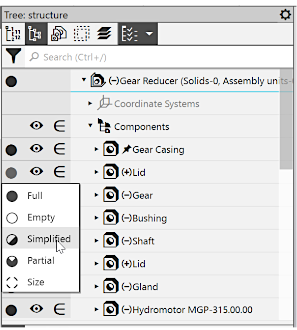
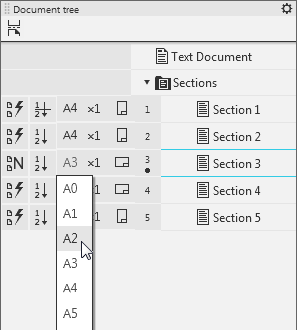
Change of object parameters in the Tree
In the tree of graphic documents and models, search for an object by the name is available. The search string is in the upper part of the tree. Details...
The  button in the Tree Panel header opens a menu with setup commands. The list of commands depends on the document type.
The detailed description of the Document Tree and ways of working with it for documents of various types is presented in the sections Model Tree and Graphic Document Tree.
See Also
