|
Layer tree |
Scroll |
Use the model layers are managed in the Layer tree. The Layer tree is displayed in the Model tree panel when the Layers  button is pressed on the toolbar.
|
Upon clicking the Layers |

To enable the display of the Layer tree, the command Layer management...  is also used..

|
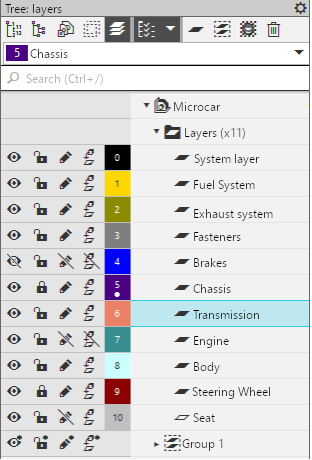
The Layer tree contains rows with the names of the layers and layer groups created in the current model. In the rows, icons display layer state values , as well as fields with numbers and colors of layers. The current layer is additionally marked with a dot in the field with the number of the layer. The name of the current layer is also displayed in the field at the top of the Tree. In the toolbar area of the Tree, there are buttons that allow you to perform various actions with layers. The following operations are available:
•creation and deletion layers,
•specifying the current layer,
•changing the layer state values,
•changing layer names and numbers,
•establishing the parameters of displaying the layers,
You can enable/disable display of non-empty or empty layers in the Layer tree. For details, see section below.
Establishing display of Layer tree
The icon of a non-empty layer in the Layer tree has black color. The empty layer icon differs from the layer icon with objects and is displayed as a gray outline. You can manage the display of non-empty and empty layers in the Tree. To do this, in the toolbar, choose the Tree structure  button. If the button is pressed, then all layers — both non-empty and empty are displayed in the Tree (see figure a). Clicking the icon
  to the right of the button opens a menu with the Non-empty layers and Empty layers commands. You will see a "tick" mark next to the name of each command. To disable the display of layers, call the required command from the list. The "tick" next to the name of the command will disappear (see figure b), and the corresponding layers will no longer be displayed in the Tree. To enable display of layers again, invoke the command once more.
|
|
a) |
b) |
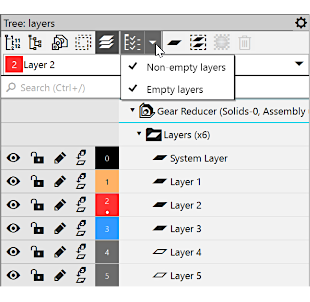
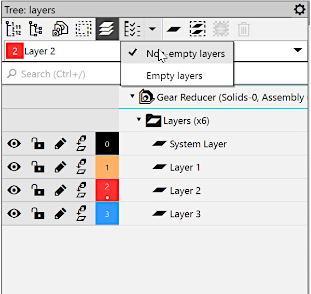
Layer display management in the Tree:
a) display of all layers is enabled, b) display of empty layers is disabled
