|
Plotting by offsetting along a direction in space |
Scroll |
When selecting the method By direction in space  , the position of the equidistant curve is determined by offsetting its initial (final) vertex relative to the corresponding vertex of the base curve. The offsetting is performed in the offset plane along the specified direction to the specified distance.
|
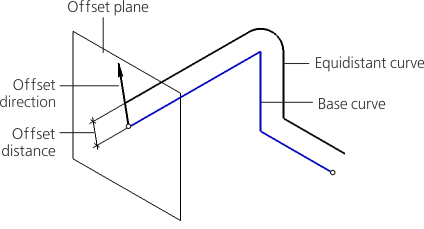
Construction of an equidistant curve by method By direction in space
Offset plane is a plane perpendicular to the base curve in its start or end vertex.
You can use the following objects to specify a starting offset direction for an equidistant line vertex.
•Point object.
Direction determined by a point object is a projection of a straight line passing through this point object and starting (or end) vertex of the base curve onto the offset plane.
•Straight-line object.
The direction set by a straight-line object is the projection of a straight line containing this object onto the displacement plane.
•Flat Object.
The direction given by a flat object is the projection of a straight line, perpendicular to this object, onto the plane of displacement.
For more details on selecting objects...
•Vector.
1.Please specify a guiding object in the graphic area or in the Design Tree, or plot a vector. To plot a vector, click Build a vector  button to the right of the field Direction on the Parameters Panel. Vector Vector construction. Follow the plotting process and press the Create Object button. The system will return to the equidistant line building process.
The name of the selected object is displayed in the field Direction.
2.Set a direction and a distance for offsetting an equidistant line relative to a base, using one of the following methods:
•Manually
•In the field Angle, enter the rotation angle of the line along which the equidistant vertex is shifted, relative to the initial direction. You can select the value of the angle in the dropdown list in the right side of this field. You can set negative value, which means rotation in the direction opposite to the starting direction.
•In the field Distance, set the offset value of the equidistant vertex from the vertex of the base curve along the specified direction. Negative distance means moving the vertex in the direction opposite to the direction defined by the base curve vertex.
•Specifying a point
•Specify a point object in the graphic area or in the Design Tree. The name of the point object is displayed in the Snap Point field.
You can plot a point during the command execution. To do this, click the Build Point button  located on the right side of the Snap Point field. Will start Process of Plotting a Point. Follow the plotting process and press the Create Object button. The system will return to the equidistant line building process.
The vertex of the equidistant will coincide with the projection of the specified or constructed point onto the displacement plane. The fields Angle and Distance in this case are filled in automatically and become unavailable for input.
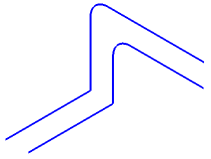
3.Select the connection method for the segments of the equidistant curve. If you want the connections to be rounded, please enable the Fillet Outside Corners setting. Otherwise the angles will be plotted without rounding, see the figure.
|
|
a) |
b) |
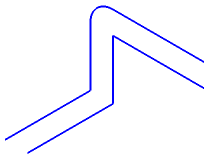
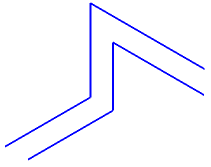
Corner passing methods
a) pass by rounding; b) by slice without fillet
4.The option Maintain radii controls the construction of those portions of the equidistant curve that correspond to arcs joining segments of the base curve (e.g., rounding at the vertices of the polyline).
•If the option is disabled, then the radii of the equidistant arcs will be different from the radii of the arcs in the base curve. Values of radii for equidistant line are calculated automatically.
•If this setting is enabled, then the radii of the equidistant arcs will be equal to the radii of the corresponding arcs in the base curve, see the figure.
|
|
a) |
b) |
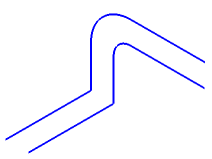
Fillet of the segments of the equidistant curve: a) without preserving the radii; b) with preserving the radii
