|
Variables toolbar |
Scroll |
All the document variables are displayed on the Variables toolbar.
To enable or disable the display of the Variables Panel, use the Settings — Panel — Variables  command.
The list of variables is shown as a table. At the first level of the list, there are variables created by the user (they form the so-called main section of the list of variables), on the next ones – variables of operation parameters of the model and variables of dimensions of graphic documents and sketches are located. Variables of dimensions in a drawing are merged into sections according to views containing the respective dimensions. In a fragment, all the variables of dimensions form one section.
|
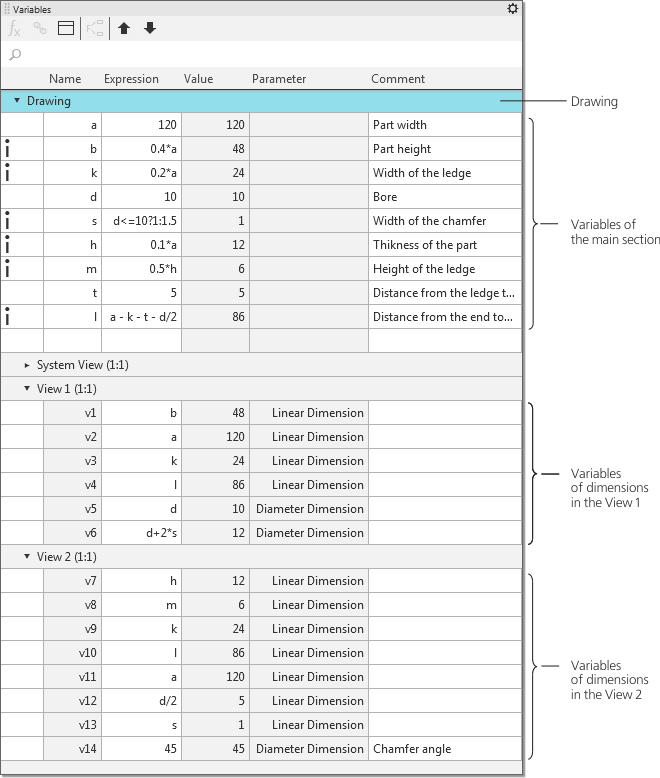
Variables of a drawing
In models, variables of operation parameters and variables of dimensions of sketches are merged into sections according to objects to which parameters they match.
|
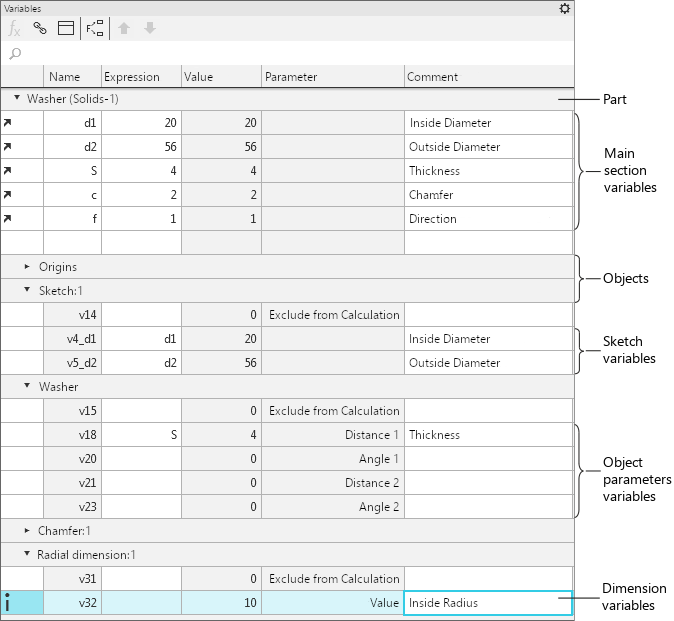
The table in which a list of variables is represented contains the default set of columns arranged in a certain order. The composition of displayed columns and their arrangement can be changed.
The rows of the table which contain variables of the main section can be moved up or down. To do this, use the commands Move Up  and Move Down
  from the context menu of the variable row or the corresponding buttons in the header of the Variables Panel. Per one command fetch, the row containing a variable is moved by one item.
Besides, it is possible to perform sorting of variables of the main section according to the data which is contained in one of the table columns. To that end, select a cell of the required column and fetch from the context menu the Sort by columncommand. Variables are sorted by any of the columns, except the Expression column. A repeated command fetch changes the direction of sorting to the opposite.
You can view the list of items of the current document in which a variable selected in the list is used. For this purpose, the Usage of variable  command of the context menu of the variable line or the button with the same name in the header of the Variables Panel is used. After fetching the command, the Use Variable dialog appears on the screen, showing a list of objects.
The Show in variable tree command allows to find the required object on the Variables toolbar. The command is in the context menu of the object in the Design Tree (available when working with a 3D model).
In three-dimensional models, working with variables of the selected object is available at the bottom of the Design Tree (see section Working with variables in the Design Tree).
