|
Working with Variables in the Design Tree |
Scroll |
In the Model tree, working with document variables and its objects is available.
The list of variables is displayed at the bottom of the Tree Panel if the Variables button  is pressed in the upper part of this area.
The list of variables is shown as a table, similar to the table on Variables toolbar:
•If the root element of the Tree is selected, then the list displays all variables of the model and its objects.
•If one or several model objects are selected, the list contains sections with variables corresponding to the parameters of the selected objects,
•If the selected object does not have variables or no object from the model is selected, the list will be displayed as empty.
The structure of columns in the table and their arrangement is subject to Setting up the Variables toolbar.
Work with variables is available when the Tree is displayed in the view. Construction History and as model structure.
|
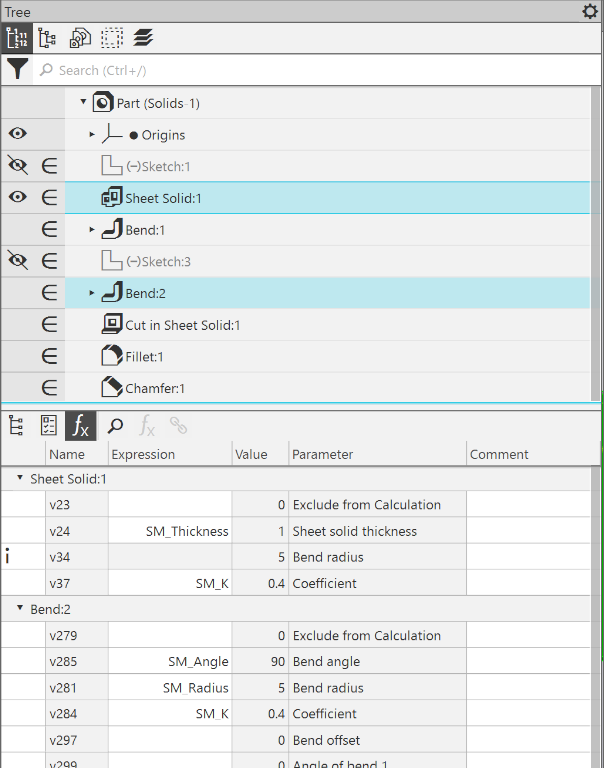
List of variables in the Design Tree
The following options are available when working with variables in the Design Tree.
Creating variables
To create a user variable, select the root element of the Design Tree. The list of variables at the bottom of the Tree displays all the model variables.
In the cell Name of the empty row in the main section of variables, enter a variable name and press <Enter>.
In the Expression cell, enter a number or a constant, an expression to calculate the value, or a reference to another variable. To insert an expression element or create a reference, click in the Expression cell of the variable being created and press the Insert function button or the Reference button  located above the variable list, or call the corresponding command from the context menu.
For more details on creating user variables...
Other than variables of a regular form, you can also create functional and interval variables, also variables of maximum deviations.
Searching for variables
To perform a search in the list of variables, click the Search  button on the right side of the Variables button in the lower part of the Construction Tree. A search field will appear above the list of variables, and the button will remain pressed. Enter the text to search for in this field.
All rows whose cells contain the entered text are displayed in the list of search results. The search is performed among the variables of the selected object (objects).
|
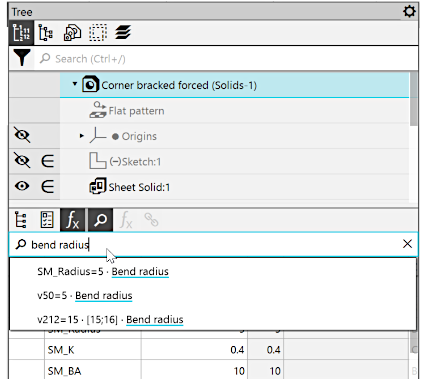
Searching in the list of variables
Select the desired row from the list of results. The row will be highlighted in the list of variables. If the search was performed among the variables of several objects or the entire model, the list of variables will be expanded at the needed section and scrolled to the selected row so that it is displayed on the screen.
To disable the display of the search field above the list of variables, press the Search button .
Editing variables
On editing variables in the lower part of the Construction Tree, available are the same options as on the Variables Panel. You can:
•Change the name (only for user variables), the method of assignment of the value, and the comment thereto. To learn more about editing variables...
•Assign statuses to variables. More details on statuses of variables...
•Assign or change tolerance for the value of parameter or a tolerance for dimension. More details on assigning tolerances...
Deletion of variables
To delete a user variable, select the root element of the Design Tree. The list of variables in the lower part of the Tree displays all the model variables. To remove a variable row, select the row to be deleted and call the Delete command from the context menu, click on the icon  in the variable row or press the <Delete> key. If the variable is not included into expressions set for the calculation of values of other variables, it is deleted. Otherwise, the variable is not deleted, and the dialog Use Variable, containing a list of model objects where this variable is used, appears on the screen.
