|
Use of Style Library Sets dialog |
Scroll |
Allows you to create new or edit existing line/hatch/text styles, as well as perform various operations with style sets and libraries.


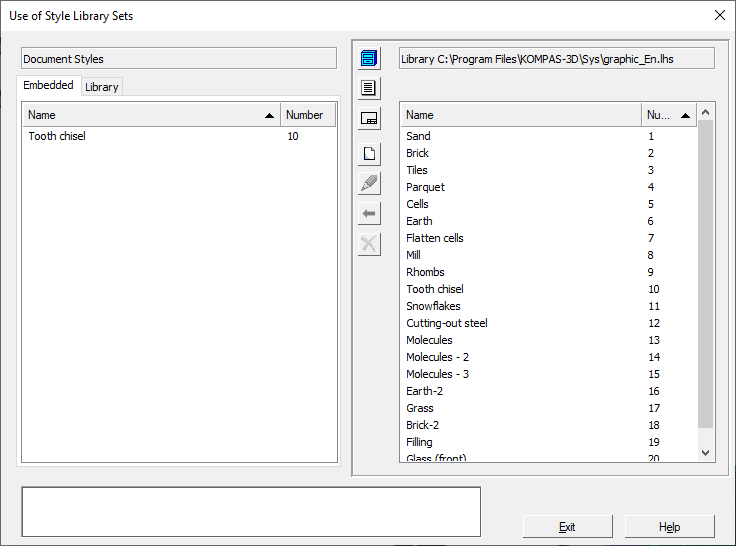
On the panels in the left and right sides of the dialog, you can display lists of styles stored in different places — a library, set, or document. To activate the desired panel, click on it with the left mouse button. A sign that the panel is active is a frame around it.
The styles in the lists can be sorted by name or number. To change the sorting, click the header of the required column. A triangle is displayed in the column header by which styles are sorted. Its position indicates the direction of sorting — ascending or descending.
Description of Controls
|
Name |
Description |
|
Preview Window |
The window in which the selected style list is displayed. Since there are two viewing windows, two different styles lists can be simultaneously displayed in the dialog. Only one window can be active — it is selected with a frame. To activate a window, click it. The styles in the lists can be sorted by name or number. To change the sorting, click the header of the required column. A triangle is displayed in the column header by which styles are sorted. Its position indicates the direction of sorting — ascending or descending. If a list of document or set styles is selected for display, the preview window contains two tabs. Tab Embedded Displays a list of styles stored directly in the document or in a set. Tab Library displays a list of styles stored as links to the corresponding library styles. |
|
Show Library |
The button allows you to display in the active window a list of styles stored in the library. After pressing this button, a dialog will appear on the screen in which you must specify the name of the style library file to open. |
|
Show Set |
The button allows you to display in the active window a list of styles stored in the set. After pressing this button, a dialog with a list of previously created style sets will appear on the screen. In this dialog, you must specify the name of the desired set. |
|
Show Document |
The button allows you to display a list of document styles in the active window. After pressing it, a list of styles stored or used in the current document will appear in the active window. If there are no open documents, and also if the current document cannot contain objects with styles that are being worked on, this button is unavailable. For example, if a text document is active, then in the dialogs for working with line and hatch styles Show Document button will be unavailable. |
|
Create |
The button allows you to create a new style. After pressing it, a dialog for creating and editing a style appears on the screen. The newly created style will be stored in the document (set, library), list of styles which is displayed in the active viewer. When creating a style you can use any of styles already existing in the library as the prototype. Select the prototype object before you press the button. The dialog that appears After you click the button will contain not the default values but values matching the prototype parameters. |
|
Edit |
The button allows you to edit the highlighted style. After pressing it, a dialog for creating and editing a style appears on the screen. |
|
Copy |
The button allows you to exchange styles between libraries, collections and documents. After pressing the selected style (styles) is copied to the adjacent preview. If the tab is active when copying to a document or set Embedded, copying the style is made directly to the document or set. If the tab is active when copying to a document or set Library, a link to the copied style is created in the document or set. |
|
Delete |
The button allows you to delete the selected style (styles) from a set, document or library. For more information on deleting styles, see section Deleting individual styles, sets and style libraries. |


For convenience, searching and selecting the appearance of the line style is displayed in a special preview window.
To complete the dialog, click Exit. After the button is pressed, all additions, deletions, and changes to any styles will be automatically saved.
