|
Creating/editing line style dialog |
Scroll |
Allows you to create a new or edit an existing custom line style to draw geometric objects. Styles can be stored directly in a document, in a set or a library of styles.
The dialog appears on the screen after pressing the Create or Edit button in the dialog. Use of Style Library Sets.

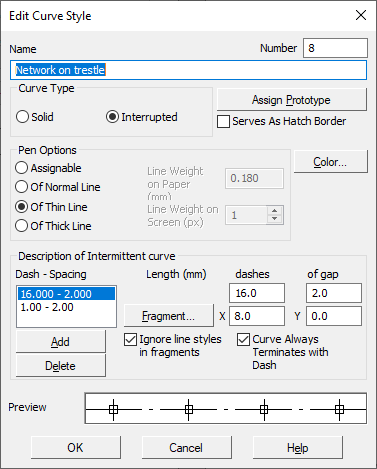
Description of Controls
The element |
Description |
|
Name |
Input field (edit) style name. It is recommended to give styles informative names that well reflect the purpose of styles. In the future, it will simplify the search for a style in the list. |
|
Number |
Input field (edit) style number. The rules for style numbering are given in the Style number. |
|
Curve Type |
A group of elements allows you to select the desired type of line: solid or intermittent. |
|
Assign prototype... |
The button allows you to select an existing style as template (prototype), a newly created style. Opens the New line style selection dialog. The prototype is convenient to use if the new style is a modification of an existing one. To select a prototype, it is necessary that the current be a graphic document. After selection prototype-style in the line style creation and editing dialog, the options are turned on and the values corresponding to the parameters of the selected style appear. |
|
Serves As Hatch Border |
Enabling this option means that the lines of this style will be taken into account by the system when automatically determining the borders of hatch. |
|
Pen Options |
A group of elements allows you to set the parameters for drawing a line on the screen and during printing. For a description of elements, see table Elements of the Pen Parameters Group. |
|
Color |
The button allows you to select the color of the line. After you click the button, a color selection dialog opens. |
|
Description of Intermittent curve |
A group of elements allows you to set parameters for a discontinuous curve. Items are available if in group Curve type the Intermittent option is on. For a description of elements, see table Controls of the Description of Intermittent curve. |
|
View |
The field displays the appearance of the line style, which allows you to evaluate the changes made. |
The element |
Description |
|
Assignable |
The option allows you to manually set arbitrary pen settings. After it is turned on, input fields for line thickness become available. |
|
Main/ Of Thin/ Of Thick Line |
Options allow you to select one of the system lines (basic, thin or thick), with which the line drawing parameters of the created style will match. When you turn on any of these options, the thickness entry fields become unavailable. If the parameters of the selected system line change (on setting up the system lines see the section System Lines...the appearance of the lines of the custom style will also change, provided that the corresponding option was enabled during its configuration. |
|
Thickness On Paper |
Field to set the thickness of the line drawing when outputting to paper (in millimeters). The field is available when the option is enabled Assignable. |
|
Thickness On Screen |
Field to set the line drawing thickness on the screen (in pixels). The field is available when the option is enabled Assignable. |
Controls of the group Description of Intermittent curve
The element |
Description |
|
Hatch-space |
The field displays a list of specified combinations of lengths of hatches and spaces. A line may consist of a sequence of such combinations. To edit the size of the hatch and the space in combination, select it in the list and change the values in the fields Dash length and Gap length. |
|
Hatch stroke length, Gap length |
Fields for entering lengths of strokes and gaps in millimeters. |
|
Add |
The button allows you to create a new combination of a stroke and a gap. The dimensions of the stroke and the gap in the new combination are the same as in the combination selected before creating the new one. A new combination is added to the end of the list. |
|
Delete |
The button allows you to remove the combinations of the stroke and the gap selected in the field hatch-space. |
|
Fragment... |
The button allows you to add an arbitrary KOMPAS-fragment. It calls the Select File dialog in which you need to specify the fragment to be included in the line style. In each combination of a stroke and a gap it is possible to include one fragment. To learn more, see section Line style with fragments. |
|
X, Y |
Fields for specifying the offset of the coordinate origin of the fragment relative to the beginning of the stroke. In field X offset in the direction of the strokes (along the stroke line) is entered, in field Y – offset perpendicular to the direction of strokes. |
|
Ignore line styles in fragments |
The option allows you to set the thickness and color of the lines of the fragments. If this option is enabled, then for all fragment lines the thickness and color specified for the custom line style are used (using Color button and Pen Options groups). If this option is disabled, the thickness and color of the fragment lines depend on the line styles used in them as follows: •Custom slice line styles are replaced with system line style Main with current parameters (those with color and thickness for the screen and for printing, installed in the system at the moment of inclusion of the fragment in the style line). •Fragment line system styles are written to the line style with the current parameters (if during the creation of a fragment the parameters of the system lines were different, then these parameters are replaced with the current ones). Line breaks are removed (i.e., dashed lines such as Dashed, Axial, etc., are replaced with continuous lines). |
|
|
The parameters of the fragment lines are saved in the line style. Their change is not available either during or after creating the style. |
|
Curve Always Terminates with Dash |
The option allows you to specify whether the line starts and ends with a dash. ( but not space). The fit is made by proportionally changing the lengths of the strokes. The state of the option is taken into account when drawing the line, if the strokes have a non-zero length. |

To complete creating/editing of the line style click OK. To exit the dialog without saving the style, click Cancel.
