|
Specifying thickness for an individual face |
Scroll |
In KOMPAS-3D, you can construct a shell of variable thickness. In a shell if this type, thickness of material layer on some faces differs from the general shell thickness.
To specify thickness for individual faces, do the following:
1.Set the toggle switch Variable Thickness to position I (enabled). The table with columns Faces and Thickness will appear on the Parameter Toolbar.
2.Specify faces in the graphic area. A line with the face names and default thickness value will appear in the table.
If the option Select Tangent Faces is enabled in the Parameters Panel, then specifying a face in the table will add not just that one face, but the entire group of adjacent faces that are smoothly or tangentially connected to each other.
3.Select material thickness value for this face in the column Thickness.
A shell may have multiple faces with thickness different from the general shell thickness. You can specify thickness for each face separately, as described above. If faces have the same thickness that is different from the general shell thickness, it's a good idea to use sets of faces. See sections below to learn how to create sets and work with them.
Create sets of faces
Set of edges is a named group of edges, for which a single thickness value is set.
To create a set, do the following.
1.Run the Create a set  command.To do this, click the corresponding button above the table on the left. After you run the command for the first time, Arbitrary thicknesses sets and Set 1 will be created. Upon subsequent uses of the Create a set command, the sets in the table will be sequentially created as Set 2, Set 3... Set N.
2.Add faces to the sets. Use one of the following methods:
•Specify faces in the graphic area. They will be added to the current set list. The current set is marked with a circle in the table.
•Select the desired face or set in the table and run the Move from the context menu. Open the list in the submenu. The set name in the submenu contains its number and thickness. For example, "Set 2:4» means that all faces of Set 2 have a thickness of 4.
Select the set where you want to move the specified face or set.
|
If there were already faces in the table before the first call of the Create a set command, then after the command call, they are automatically included in the Arbitrary Thicknesses set. |

3.Enter the thickness value in the column Thickness. It will be applied to all faces in the set.
The exception is a set of Arbitrary Thicknesses: for this case, entering a thickness value is not allowed. This is a set for faces that are not included in sets Set 1, Set 2 ... Set N. Faces in the Arbitrary thicknesses set may have different thicknesses.
|
The Create a set command can be run from the context menu of any face or set located in the table. |
Working with sets of faces
You can perform various actions with sets of faces: change the list of faces in the set, explode, delete, etc. The buttons above the table and the commands in the context menu are used to manage the sets. See the figure below for a sample table with sets of faces.
|
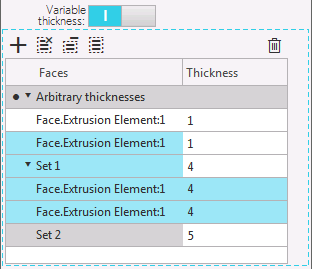
Table with sets of faces
•To destroy the set, select it and run the Destroy the set  command from the context menu or click the corresponding button above the table. Faces included in the set will be moved to the Arbitrary Thicknesses set. The exploded set will be deleted from the table.
•To remove an edge from the set, select it and invoke the Remove from set  command from the context menu or click the button with the same name above the table. The face will be moved to Arbitrary thicknesses set.
•To create a set of faces and/or previously created sets, select them and run the Combine into set  from the context menu or press the corresponding button above the table. A new set will be added to the table where selected faces or faces from selected sets will be moved. Sets included in the merge will be left blank in the table.
•To remove an edge or a set, select it and invoke the Remove  command from the context menu or click the corresponding button above the table. The face or set will be deleted from the table.
•To move a face or a set to another set, select the object in the table and run the Move command from the context menu. If you move a set, all its faces are moved while the set is left blank in the table.
Use variables when working with sets of faces
You can use variables to change thickness for faces in any set except the set Arbitrary thicknesses.
Variables that manage set thicknesses are auto-created in the model upon completion of the Shell operation. They have a comment "Set 1", "Set 2", etc. in the Variables Panel. See the figure below.
|

Shell of varying thickness with sets of faces in the Variables panel
For more details on working with variables and expressions...
