|
Managing command display on the context bar |
Scroll |
You can manage the display of the command buttons located in the context bar.
Commands the buttons of which are present on the bar are contained on the bar setup menu (this menu is called by clicking the button  ).
).
By default, the display of all command buttons is enabled and their icons in the menu have a dark background. To disable the display of any command button, click on the corresponding menu bar. The icon background in the row will become light and the command button will no longer appear on the bar.
|
|
a) |
b) |
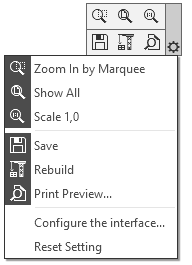
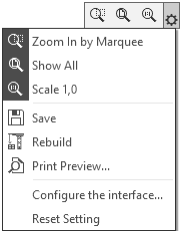
Drawing context bar:
a) display of all buttons is enabled;
b) display of buttons of the bottom row is disabled
Clicking on the command row again enables display of the button. It will appear on the bar in the same place.
Disabling display does not remove the command from the bar setup menu. You can quickly return the command button to the bar, if needed.
Commands not available for display settings
When the context bar appears on the screen, it displays only those buttons commands of which can be called at the moment. However, the setup menu list contains all the bar commands, both available and unavailable. Unavailable commands in the list are shown in light gray.
|
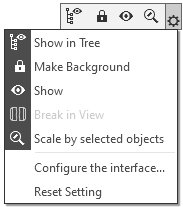
Displaying available and unavailable commands of the toolbar in the settings list
You cannot disable visibility of the unavailable command. If you want the command never to appear on the bar, call the context bar when the command is available and disable its display. You can also enable the command display again only when the command is available for calling.
|
You can delete in the process of editing the structure of the panel. |

