|
Dialog for deleting the build history |
Scroll |
This dialog appears on the screen after calling the Edit – Clear drawing history command.
The dialog allows you to set transformation parameters for the model when deleting the construction history.

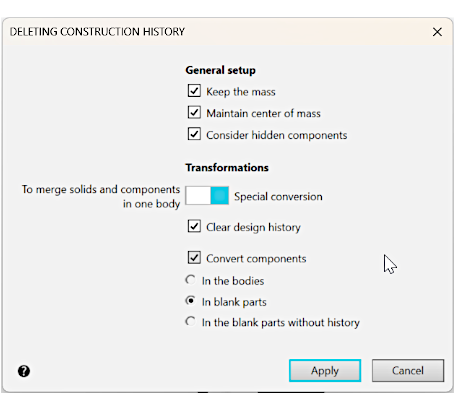
Controls of the dialog are described in the table.
Description of Controls
The element |
Description |
|
General settings |
A group of options for defining the general settings of transformation. |
|
Keep the mass |
If this option is active, then the transformed model will have the same mass that the source model. If this option is not active, then the mass of the transformed model will be recalculated. |
|
Maintain center of mass |
If this option is active, then the center of gravity in the transformed model will coincide with the center of gravity in the source model. If this option is not active, then the center of gravity coordinates of the transformed model will be recalculated. |
|
Consider hidden components |
If this option is active then both visible and hidden components will be transformed. After they are transformed into solids they will become visible, while after they are transformed into stock parts they will remain hidden. If this option is not active, then hidden components will be considered as non-existent. Excluded components are always missing. |
|
Transformations |
A group of elements for selecting the method of changing the model structure. |
|
Merge solids and components into one solid/ |
This selector allows you to select the method of model transformation. •Merge solids and component into one solid — use this option to merge all solids and components of the model into a single solid. Transformation parameters configuration is not available. •Special conversion — use this option to parametrize the model structure transformation. |
|
Clear design history |
Activate this option to delete the information on the model objects creation methods and internal links from the model file. Result of deleting the construction history: •solids/surfaces/curves turn into operations/surfaces/curves with no history; •arrays turn into sets of objects positioned according to the array parameters; •local coordinate systems, control and connecting points are replaced with standard points, •sketches, auxiliary axes and planes, as well as detailing and mating elements are removed; •components are fixed; •if a component is modified by an operation in the parent model, then its edited solids and surfaces will be transferred to the model, and the component as such will be removed from the model. Please not that this option deletes the construction history only for the objects that pertain directly to the transformed model, i.e. components design history will be preserved. |
|
Convert components |
Enable this option for components transformation. Select the option for components transformation (see below). If this option is disabled, then the components will remain unchanged. If the Clear construction history option is enabled, then the components influenced by the operation in the parent model will be transformed using the above procedure irrespective of the setting for the Convert components option. |
|
In the bodies |
If you activate this option then solids and surfaces of components on all levels will be transformed in solids and surfaces with no history. Names of the solids and surfaces will correspond to the names of the relevant components. Other objects of components will not be transferred to the resulting model. If the model contains any operations with components (e.g. array of components), then such operations will be removed after transformation into solids since they loose their source of construction. They will be deleted irrespective of the setting for the Clear design history option. |
|
In blank parts |
Selecting this option means that first level components are converted into blank parts inserted into the model by reference to external files. Components of other levels remain unchanged, i.e., they are not converted into blanks and remain inserted as a reference. Stock products and library components will not be transformed into stock parts. |
|
In the blank parts without history |
Selecting this option means that first level components are transformed into blank details, inserted into the model as local details. Components of other levels remain unchanged, i.e., they are not converted into blanks and remain as inserted references. Stock products and library components will not be transformed into stock parts. |
|
The excluded components are not taken into account in the conversion process. They are considered non-existent. |

After setting the parameters, click Apply. To exit the dialog without converting the model, click Cancel.
See Also
