|
Managing visibility of construction objects |
Scroll |
You can control the visibility of construction objects of the model using commands in the View — Hide menu.
To hide construction objects of a certain type invoke the relevant command from that menu. After invoking any command all objects of the relevant type will be hidden – both existing in the model and newly created objects. Icons and names of these objects will be shaded in the Design Tree. The button located next to the name of the invoked command in the menu will be pressed down. It means that the objects have been hidden.
|
The Detailing Geometry command controls the display of the entire detailing geometry, contained in the model and/or its components. Other commands have no influence upon the display of detailing geometry objects. |

To hide all auxiliary objects in the model, invoke the View — Hide — Hide all auxiliary objects  command. Buttons of all commands within the menu will be pressed down.
To make the construction objects visible again invoke the corresponding hiding command once again.
Commands from the View – Hide menu apply to the auxiliary objects of the model and its components.
To control the visibility of the auxiliary objects per components use commands of the View – Hide menu in the relevant components. Function of such commands is similar to the above description. The only difference is that the commands apply only to the model components objects.
|
Objects hidden by the above commands cannot be made visible using the Show command and the Design Tree icon. The property value Visibility cannot be changed in the Parameter Panel for these objects. |
List of commands to control the visibility of auxiliary objects is presented in the table.
Commands to control the visibility of auxiliary model items
Name of option |
|
|
Coordinate Systems |
|
Drawing Planes |
|
Structural Axes |
|
Sketches |
|
Surfaces |
|
Polygonal objects |
|
Wireframe Elements |
|
Control Points |
|
Cosmetic threads |
|
Dimensions |
|
Conventional Symbols |
|
Labels |
|
Tables |
|
Detailing Geometry |
|
Property Labels |
|
Diagnostics objects |
|
Hide all auxiliary objects |


The and  buttons, which control the display of auxiliary objects in the model and its components, are also present on the Quick Access Toolbar. Clicking the button will activate/deactivate the display of all auxiliary objects. Clicking the icon
  to the right of the button opens a menu with commands that control the display of objects of a particular type (see Figure).
|
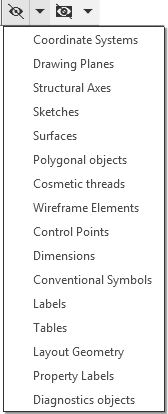
Commands to control the display of the auxiliary items
See Also
