|
Stopping Chamfer and Fillet |
Scroll |
You can stop chamfer or fillet, if plotting is performed on one edge (or one edge chain). You can specify one or two stopping points on an open edge (chain), and you must specify two points on a closed edge.
|
|
a) |
b) |
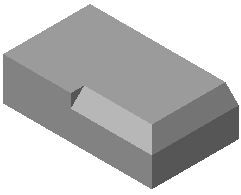
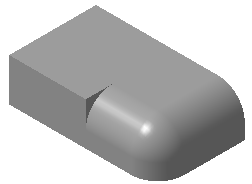
Examples of stopping
a) Chamfer, b) Fillet
To set up the stop parameters, open the Chamfer/Fillet Stop section on the Parameters panel. The controls to configure stopping are the same for chamfers and fillets.
Step-by-step instructions
1.Set the First point toggle switch to the position I (enabled).
2.Specify the chamfer/fillet stopping point on the edge using the group of elements Stopping point. To do this, you can use the following options:
•specify the point using one of methods in the Move group:
•In % of curve length – the offset from the edge starting point is specified in the field with the same name;
•By segment length – the offset from the edge starting point is specified in the Length field;
•By central angle of arc (available for circular and elliptical arcs) – the offset from the edge starting point is specified in angular measurement units in the Angle field;
•specify an arbitrary point on an edge;
•specify a vertex belonging to the chain of edges;
•specify an object for associative link:
•a point object belonging to an edge,
•a flat object whose plane intersects the edge (the stopping point in this case is found as the point of intersection of the edge with the specified object or its extension).
The name of the vertex or the object for associative link is displayed in the Object field.
The specified stopping point is marked in the graphic area with a digit and an arrow. The arrow shows the trimming direction: the part of the edge where the arrow points will be left unchanged, and
3.You can change the chamfer/fillet trimming direction to the opposite using the Change trimming direction button  .
.
4.If the flat object used to define the stopping point intersects the edge in several places, the Parameter Toolbar displays buttons Next Point  and Previous Point
  . They are used to select the desired point.
If you specify a flat object, the Parameter Panel displays the Trimming by object option. By default the chamfer/fillet is trimmed at the stopping point by the plane perpendicular to the edge, as shown in the picture above. If you enable the option, you can trim the chamfer/fillet with the plane of this object.
5.To specify the second stopping point for the chamfer/fillet, set the Second point to position I (enabled). The point parameters are specified similarly to the first point.
|
For a chain of edges you can stop the chamfer/fillet if the angle between normal lines to the adjacent faces at all points of the chain is constant, see picture above. |

|
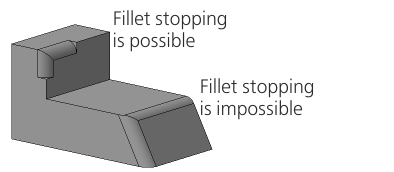
Fillet stopping availability
