|
Trimming a curve with two objects |
Scroll |
To create a copy of a curve trimmed by two objects, set the Two intersecting objects toggle switch to the position I (enabled). The Cutting object 2 field will appear on the Parameter Panel; the Change Trimming Direction button will disappear.
Specify the curve and the secant objects.
•If the secant objects have one point of intersection with the curve, the phantom of a trimmed curve is bounded by the intersection points 1 and 2.
|
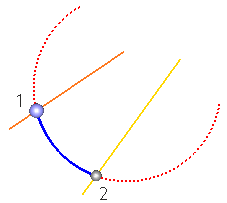
Intersection of the curve with each secant object in one point
•If the secant objects have several points of intersection with the curve, these points are displayed in different colors. Boundary points of the phantom of a trimmed curve are displayed in violet. All the other points of intersection of the first object are displayed in yellow, and of the second object in gray.
|
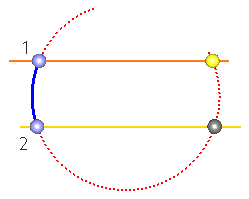
Intersection of the curve with secant objects in several points
You can modify the positions of the start and end of trimming by specifying the object intersection points.
•To select a point belonging to the first secant object (yellow point), click this point.
•To select a point belonging to the second secant object (gray point), click this point while holding down the <Ctrl> key. When holding the <Ctrl> key, the points of the second object change color to yellow, and the first object's points change to gray,
|
Please note that the phantom of a trimmed curve is always restricted by the points of different intersecting objects. |

