|
Entry of caption for designation of surface finish |
Scroll |
Surface finish designation text is entered in the Add Text subprocess. This subprocess is started automatically after fixing of the surface finish sign in the graphic area. You can also start this subprocess manually. To that effect, click in the Text field on the Parameter Panel, or press any alphanumeric key on the keyboard.
While working in the subprocess, you can generate a designation caption and tune its look and feel, for example, to select the font, set the height of characters, etc.
The structure of the surface finish designation is defined according to GOST 2.309–73 (see the Figure).
|
|
a) |
b) |
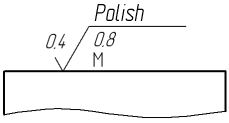
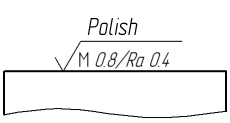
Structure of designation of surface finish
a) compliant with the previous edition of GOST 2.309–73,
b) compliant with amendment #3, 2003 in GOST 2.309–73
Selection of the structure used in the current document is done in the Surface finish section in the dialog for setting up the current document. By default, designations of surface finish in new documents are created according to the amendment in GOST 2.309–73.
Designation elements are entered into the text fields on the phantom sign. To quickly switch between the fields, use the <Tab> key.
Double-click in any text box opens the respective custom menu:
•in the field above the signage landing – names of methods for surface processing,
•in the first field under the landing – conventional designations of directions of roughnesses and their names,
•in the second field under the landing – parameters of surface finish Ra, Rz, Rmax, Sm, S, and their values, the parameter of relative reference length tp, and the levels of section of profile, as well as the values of datum lengths.
After completing caption text input and formatting, click the Create Object button  .
.
|
If caption parameters in all the designations of surface finish differ from the current default parameters, then it is recommended not to configure each separate label, but to set required parameters as default. For that purpose, there is the Surface finish section of the dialog for setting up the current document. |

