|
General Information |
Scroll |
In KOMPAS-3D, objects of the model are created and edited by executing operations. Most operations have a certain set of numeric parameters. For example, numeric parameters of the extrusion operation are the extrusion distance, slope angle and wall thickness, and a numeric parameter of the scaling operation is the scale factor.
A characteristic point of a three-dimensional object corresponds to each numeric parameter of the operation. Defining points are displayed as color squares on the screen when the operation is being executed.
If the operation parameter is expressed in linear or angular values, then during execution of the operation this parameter is displayed on the screen as the dimension of the corresponding type (operation dimension).
In the above examples, the extrusion distance, slope angle and wall thickness are displayed as the corresponding dimensions and characteristic points; the scaling factor is displayed only as a characteristic point.
Some operations are based on a sketch. If you set dimensions in the sketch, these dimensions are also displayed on the screen during execution of the operation.
|
Dimensions of sketches and operations are displayed on the screen when you create/edit operations, if in the dialog for setting up the dimensions and designations display, the option Dimensions of sketches and operations is enabled. |

For more details on dimensions of sketches and operations...
The Figure shows an example of building an extrusion element based on a sketch. The element phantom displays:
•defining points as blue squares,
•dimensions of the operation – extrusion distance (24), slope angle (10°), wall thickness (12),
•dimensions of the sketch – height (60), width (76).
|
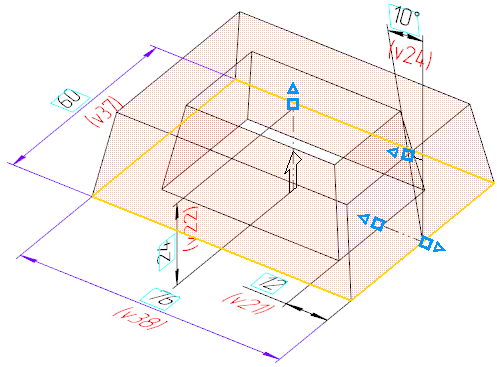
Example of building an extrusion element based on a sketch
|
A variable is automatically created for each numeric parameter of the operation. A variable for sketch dimension is created by the user (see section Set dimension value). The names of variables are displayed under dimensional lines of dimensions. If variable names are not displayed, invoke the View — Display — Variable Names in Dimensions command. |
The value of the numeric parameter could be a number or a constant. You can also set a parameter by a mathematical expression.
You can use the following methods to set numeric parameters of the operation:
•enter the parameter or expression value in the corresponding field on the Parameter Panel to calculate the parameter value (see sections Entering parameter values into fields and Syntax of expressions);
•drag a defining point using the mouse (see section Defining Points of Objects;
•set the value of the dimension of a sketch or operation using the Set dimension value dialog To call this dialog, double-click the dimension text of the dimension in the graphical area of the model.
If the numeric parameter of the operation is displayed as the dimension on the screen, you can assign a tolerance to the value of this parameter. Details...
You can change numeric values of the operation parameters after you create the operation. To learn about the methods of editing operation parameters...
