|
Curvature plot |
Scroll |
The graphic of curvature is a graphic representation of curvature values based on the set of points along the curve. Curvature values are displayed on the plot in the specified points of the curve as normals, or "needles". You can build a graphic of curvature or curvature radius.
|
|
a) |
b) |
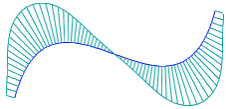
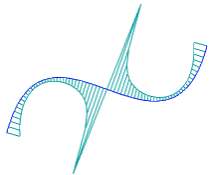
Examples of curve curvature plots:
a) curvature plot, b) curvature radius plot
More details on the curve curvature plot...
To build a curvature plot, use the Curvature Plot  command.

Step-by-step instructions
1.In the graphic area or in the Design tree, specify the curve for which you want to build a curvature plot (the curve can be specified before calling the command).

The curve name is displayed in the Objects field on the Parameters toolbar. A phantom of the curvature plot with default settings is displayed in the graphic area.
2.Select the plot type — curvature plot or curvature radius plot. The Values toggle switch in the Curvature graph section on the Parameters panel is used for this purpose.
By default, the curvature plot is displayed on the screen. The Values toggle switch is set to Curvature. To build a curvature radius plot, set the toggle switch to Curvature radius.
3.You can adjust the density and scale of the «needles» on the graph in the Curvature graph section. More about settings of graphic of curvature...
4.If you need to calculate the value of curve stress calculation, then in the section Curve stress calculation flip the switch Tense calculation in position I (enabled). The calculated voltage value will be displayed in the graphic area next to the curvature graph phantom.
5.If you need to save or print the voltage curve value, use the Information Window commands. To open the Information Window, click the Show in the information window button. The button is available if the Tense calculation switch is in the I (on) position.
6.If required, specify the plot color in the Properties section.
7.To save the plot (objects as well as parameter settings will be saved), click Save  in the header of the Parameters panel.
The graphic area will display the curvature graph and the curve's stress value, if enabled, the Diagnostics section of the Model Tree Curvature graph: N object with a corresponding iconwill appear. If multiple curves are specified during the command, a separate object will be created for each.
8.To complete the command, click the button Finish  in the Parameters panel header.
For a curve, you can only build a single graphic of curvature. When you build a new plot, the previous one will be edited.
|
The curvature plot changes automatically when the curve shape is changed. |
