|
Recalculate sizes |
Scroll |
The command is used to control the recalculation of the model dimensions Managing size recalculation  .
.

After invoking the command, the recalculation parameters appear on the Parameter panel.
|
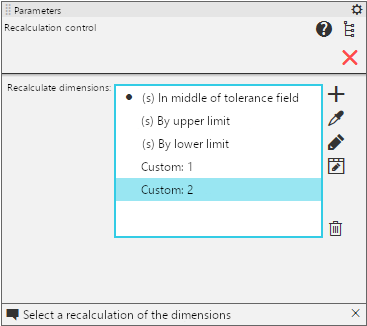
Parameters panel when working with resizing
In the field Recalculate sizes contains the list of recalculations. It contains the names of all recalculations of model sizes - system and user (if created). The icon (c) is displayed before the name of the system recalculation. The current recalculation is marked with a dot, which is located to the left of the recalculation name. To the right of the field with the list of recalculations are the recalculation parameters.
In progress Recalculate sizes the following actions are available:
•Selecting the current recalculation.
Click the mouse to the left of the recalculation name in the list Recalculate sizes. The selected recalculation will become current and will be marked with a point.
•Creating a custom recalculation.
To create a custom recalculation, click the button Create  . A new recalculation will appear in the list of recalculations. To form a set of variables for a new user recalculation or edit an existing one, select the line with the recalculation in the list and click the button Edit table
  . . A dialog will appear on the screen where you can configure custom recalculation parameters.
•Creating a custom recalculation with the parameters of an existing recalculation.
To create a custom recalculation by sample, select the required recalculation sample in the list and click the button By instance  . A new custom recalculation with the sample recalculation parameters will be added to the list.
If one of the system recalculations is selected as a sample recalculation, then the user recalculation will include all the variables of the current model that correspond to the sizes of sketches and operations. The method of recalculating the value of each variable in this recalculation will correspond to the selected system recalculation.
•Removing a custom recalculation.
To delete a custom recalculation, select it in the list of recalculations and click the button Delete  . The button appears on the Parameter panel when a custom recalculation is selected in the list of recalculations.
•Renaming a custom recalculation.
To rename a custom conversion, select it in the conversion list and click the button Edit  , and then enter a new conversion name. The button is present on the Parameter panel when a custom conversion is selected in the list.
|
The system recalculation cannot be deleted or renamed. |

After completing all the necessary actions with recalculations, click the button Finish  .
.
