|
Setting parameters of custom recalculation |
Scroll |
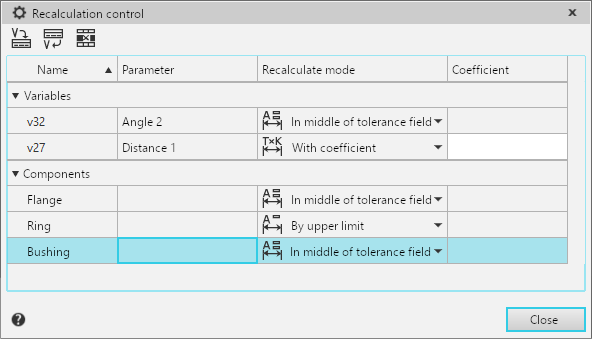
To set up/edit the parameters of the custom recalculation, use the dialog Managing size recalculation. The dialog will appear Edit table  on Parameter panel next to the field Recalculate sizes in command Managing size recalculation.
To set custom recalculation parameters, follow these steps:
1.Generate a set of variables and/or recalculation components.
•To add variables, use one of the following methods.
•Specify in the Design tree or in the graphic area the derived sizes corresponding to the required sizes of sketches and operations (derived sizes must be created in advance, see section Derivative sizes).
•Add the required model variables to the set using the buttons located on the dialog toolbar:
 Read variables — the button is used to add model variables corresponding to the sizes of sketches and operations. After clicking the button, all the variables of the sizes and parameters of the model operations will be added to the list of variables. Please note that the variables of the sizes and parameters of the operations that have the status «information» are not added to the list of variables (for information variables, see the section Information variables)
 Insert variable — The button is used to add a specific model variable. After pressing the button, a dialog Variables appears on the screen, which allows you to select a variable from the list of variables in the current document. Specify the required variable and click the button Insert. The selected variable will be added to the recalculation..
•To add a component, specify it in the Design tree or in the graphic area. Please note that first-level components are involved in recalculating sizes, and in their entirety, i.e. selectively specifying objects or component variables is impossible. The list of recalculation variables will show lines corresponding to the variables and/or components of the set.
2.Specify the recalculation method for each variable and component. To do this, in the column cell Recalculation method from the drop-down list, select the required recalculation method: in the middle part of the tolerance field, by upper limit, by lower limit, with coefficient (for methods of recalculating sizes, see the table Recalculation methods of model sizes). When using the method with coefficient enter the coefficient value from 0 to 1 in the corresponding cell of the column Coefficient.
Please note the features of the component recalculation settings:
•the method of recalculation with coefficient is not available,
•when selecting the method in the middle part of the tolerance field, by the upper limit or by the lower limit, all component variables are recalculated according to this method,
The table allows sorting rows by parameter name. To select a column for sorting, click on its name, and to change the sorting direction, click on the triangle that appears to the right of the column name.
You can assign a recalculation method to several variables at once. To do this, select them in the table and left-click on the column name Recalculation method, and then specify the required method in the list that appears. You can also assign a coefficient if the With coefficient method is selected.
To delete variables and components from recalculation, use the button Delete the selected rows . To delete a required row, select it in the list and click the button. Deleting a row means excluding the variable or component corresponding to this row from the custom recalculation. The variable or component in the model remains unchanged.