|
Circular Pattern |
Scroll |
To copy selected objects with placement of copies in the nodes of a circular grid with the specified parameters, use the Circular Pattern  .
.

Step-by-step instructions
1.Select the objects to copy. To do this, specify the required objects in the Object selection subprocess and click Create Object  .
.
In the Parameter Toolbar, the copying controls will appear. Names of the selected objects are displayed in the Objects field.
|
If the objects are specified before the Circular Pattern command is invoked, then the subprocess of selecting objects is not launched. The system proceeds immediately to the copying command execution. If you need to select other objects for copying, click Objects link and specify the new objects in the subprocess of selecting objects. |

2.Set the base point for copying.
The graphic region will display a phantom of the copies to create. The anchor points of the copies coincide with the grid nodes.
|
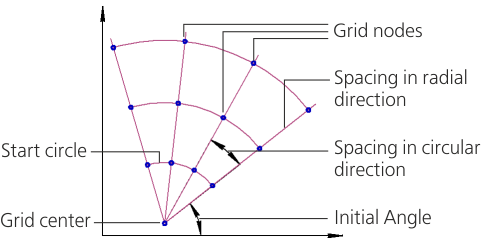
Concentric grid formation schema
3.In the Radial direction control group, specify:
•the radius of the starting circle of the grid in the Initial Radius field;
•the treatment of the distance between copies in the radial direction by clicking the appropriate button in the Distance between group:
 By adjacent copies
 Last copies
•the distance between instances along the radial direction in the Value field;
•the number of instances along the radial direction in the Number of Copies field;
4.In the Circular Direction control group, specify:
•the angle between the first radial line of the grid and the X axis of the current coordinate system in the Starting angle field;
•the treatment of the angle between radial lines of the grid by clicking the appropriate button in the Angle between group:
By adjacent copies
Last copies
•the angle between radial lines of the grid in the Value field;
•the number of instances along the round direction in the Number of Copies field.
5.If necessary, set the rotation angle for the copies in the Rotation Angle field. The rotation center of a copy is its base point.
6.If necessary, set the scaling coefficient for the copies in the Scale field.
|
To set the operation parameters and position the cursor precisely, you can use snaps and geometrical calculator. |

7.Using the option Retain Instance in Center, specify if it is required to draw a copy in the center of the grid.
8.Using the option Set Instances Radially specify if the copies need to be rotated to the radial direction:
•if the option is enabled, each copy is rotated so that its position relative to that radial line where it is located coincides with the position of the source object relative to the X axis of the absolute coordinate system,
•if the option is disabled, the copies are placed in the same way as the source objects.
|
|
a) |
b) |
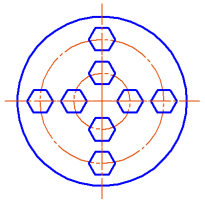
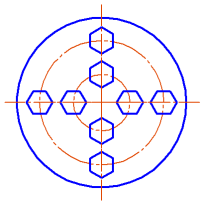
Copying by circular pattern
a) without additional rotation up to the radial direction, b) with additional rotation up to the radial direction
|
Object copies are positioned in the described way, if the Rotation Angle field contains zero value. Otherwise each copy is rotated additionally to the given angle. |
9.Set the insertion point for the grid. The copies will be created automatically.
10.After the copies are created, the selected objects stay selected. You can create a desired number of copies of these objects or select other objects and create their copies.
11.To complete operation of the command, click Finish  .
.
