|
Print Settings |
Scroll |
To set up the print settings in the preview mode, use the Print Settings...  command.

After you run the command, a dialog box will appear on the screen.
|
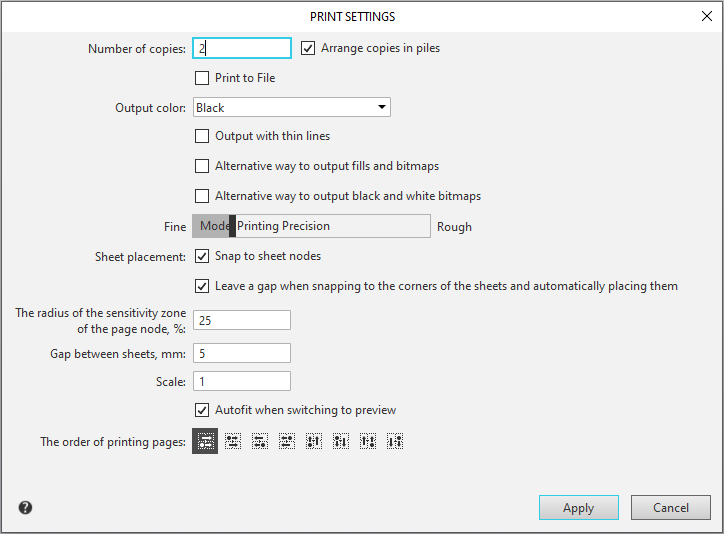
The dialog controls allow you to specify the number of copies of documents to print, the order in which sheets are placed and printed, methods for printing various types of objects, the option to use colors when printing, and the scale and precision of printing. More about elements of dialog management...
When all the settings are configured, click OK.
Such parameters as Snap to page nodes  and Leave gap between sheets
  can be controlled without invoking the dialog — using the buttons on the Toolbar.
|
If the print color has been changed or if the Print With Thin Lines option has been switched, the image will be redrawn. If you change the default scale, it will only impact new documents when you add them to the preview. Already opened documents won’t be affected. |

|
If you have enabled printing to file, then after you run the Print command, a dialog will appear where you would need to set the name and path of the file. |
|
You can configure the print settings from the preview mode in advance, using the main window of KOMPAS-3D. To do that, run the File – Print Preview – Print Settings.... |

