|
Change Styles of Selected Objects dialog |
Scroll |
This dialog is used to specify which styles of the selected objects (curves, points, texts and hatches) should be replaced, and select the styles to replace them.

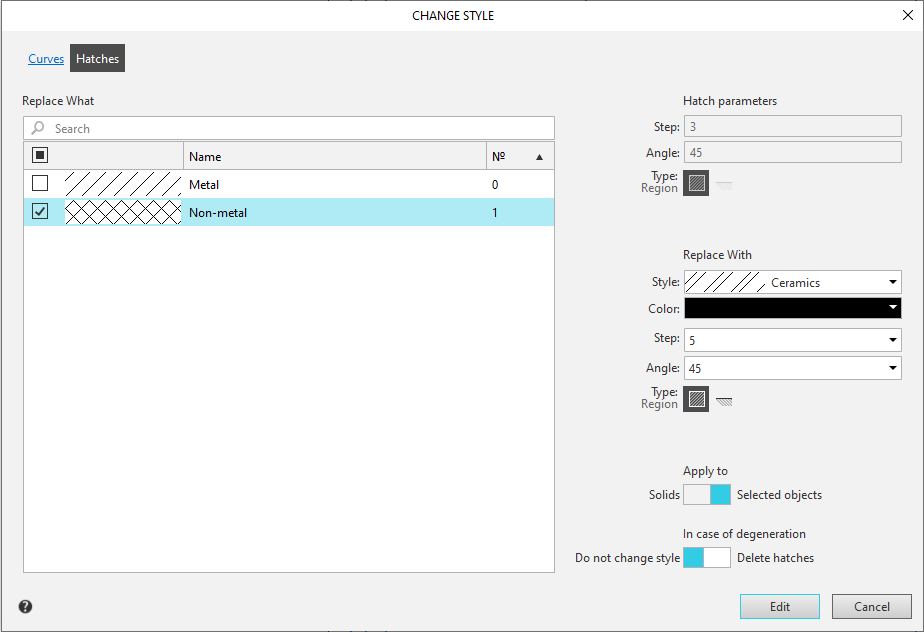
Depending on which objects are selected, the dialog may contain the following tabs:
•Curves — serves to modify the styles of curves,
•Symbols — is used to change the styles of points,
•Texts — serves to change text styles,
•Hatches — serve to modify hatch styles.
Elements located on the tabs are shown in the table.
Change style dialog controls
The element |
Description |
||
Replace What |
A window with a list of styles applied to selected objects. The list is presented in table format and is used to select styles to be replaced. The first column of the table contains options for enabling/disabling replacement for the corresponding styles. The option in the column header allows you to enable/disable replacement for all styles in the list at once. It can have one of three states: •enabled •not defined •disabled If the option's state is undefined, clicking on the option will disable it, and clicking again will enable it. The second column contains the style sample (for all styles except text styles), the third column contains the style name, and the fourth column contains the style number. You can sort styles and search for a style by name or number. To sort (or change the sorting direction), click the corresponding column header; the order of the rows in the table will change. To search, enter the search characters in the field above the list; only rows containing the specified characters will remain in the table. |
||
|
All selected styles will be replaced with a single style, meaning objects that originally had different styles will receive the same style as a result of the replacement. It's not possible to apply different replacement styles to different source objects in a single command. |
||
Hatch parameters |
A group of elements for viewing the parameters of the hatching style whose row is highlighted in the table. |
||
Replace With |
A group of elements that allows you to specify a style that will replace the styles marked in the table. |
||
|
Style |
A drop-down list for selecting a replacement style. The list contains all the styles available in the document. The last line — Another Style...—lets you select a style from a library or set. |
|
|
Advanced on the Hatch tab |
||
|
Color, Step, Angle, Type, |
Fields for specifying parameters of replacement hatching. |
|
|
Apply to |
A toggle switch for selecting the style change method. Available if at least one hatch pattern whose parameters are retrieved from the model is selected. Toggle positions: •Solids — are replaced simultaneously: •Selected objects — only the styles of the selected hatches are replaced (default method). |
|
|
|
||
|
|
||
|
In case of degeneration |
A toggle switch for selecting how to handle cases where replacing hatching results in no hatch lines appearing in the hatched area. This can happen, for example, if a hatch with a large pitch is applied to a small area. Since such a hatching will not be visible in the document, it is not created. Toggle switch positions: •Delete hatches, •Do not change style. |
|
 — all options in the list are enabled (all styles listed on the page will be replaced),
 — the list contains both enabled and disabled options (styles with enabled options will be replaced, while those with disabled options will not),
 — all options in the list are disabled (no style from the list will be replaced).
Once you've selected the styles to replace and the ones to replace on all pages of the dialog, click the Edit button in the dialog. This button is present if at least one style on at least one page is marked as being replaced. The dialog will close; the selected objects whose styles were marked as being replaced in the dialog will change their appearance according to the replacement settings.
To cancel replacing styles, click the Cancel button.
See also
