|
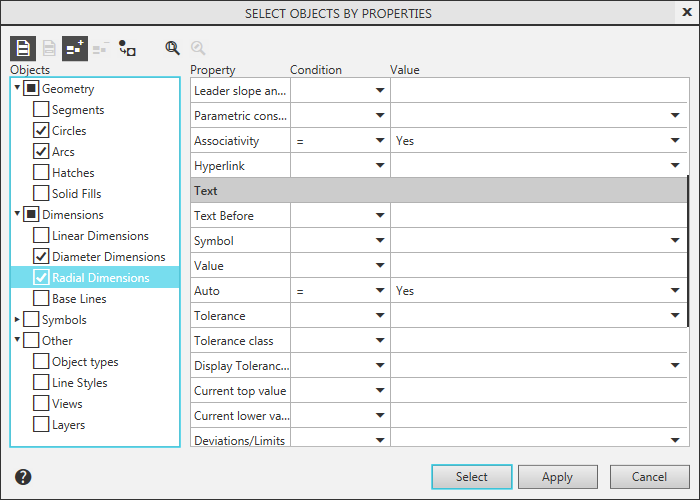
Select Objects by Properties dialog |
Scroll |
This dialog allows direct or reverse selection of objects with common properties, such as geometric parameters, types and layers, line styles, etc.


The element |
Description |
|
Objects Selection Tree |
The Objects Tree contains the set of object types present in the current document, and if the application area is selected objects, that the Tree contains only those types which are among the selected (for the application area, see below). The Tree structure is formed automatically. To select the desired type of objects, you use the option next to its name. Enabling the option means that the type is selected. The type names in the Tree are grouped. An option near the group name allows to select all types of objects included in it. Disabling the options cancels the selection of all group elements. If you select multiple (but not all) elements of a group, a black square is displayed near the group name, instead of the enabled option. |
|
Field for setting up conditions |
The field contains a set of elements to set up a condition for the type of objects which is selected in the dialog tree. Depending on the selected type, the field displays: •the table of properties of objects of this type — setting up property values is described below, •the list of value options — you select the desired variants using options in the list. The table of properties contains three columns: Property, Condition and Value. In the column Property lists the signs that are selected among the objects of this type. In each Condition column cell there is a drop-down list of characters that define the conditions for assigning values. = — equal, contains, <> — not equal, does not contain, >= — greater than or equal, <= — less than or equal to > — greater than, < — less than. Column cells Value depending on the selected property, they are an input field or a drop-down list of parameters. You enter a coordinate or a dimension in the cell using keyboard (to separate the integer part from the fraction use a point). The remaining parameters are selected from drop-down lists. Lists contain only those property values (line styles, constraint types and etc.), which are used in this document. Drop-down color palette – standard. |
|
|
Apply to all objects Apply to Selected Objects |
Buttons allow to select the area to apply the configuration: •all objects of the document, •only selected objects (this option is available if the document contains selected objects). If the document contains selected objects when the dialog is run, then the option Apply to Selected Objects is automatically selected in the dialog — the appropriate button is pressed. |
|
Add to Group Exclude from Group |
Buttons allow to select objects matching the given condition, or deselect them. •If the Add to Groupbutton is pressed, then all the specified objects will be selected or added to those previously selected. •If the Exclude from groupbutton is selected, then the specified objects are excluded from those selected ones. The button is available if there are selected objects in the document. Selection or deselection occurs after pressing the Select or Applybutton. |
|
Invert Selection |
The button allows to invert the selection result. Inverting means that selection is undone from selected objects, but all the remaining objects are selected. If some objects are shown on the Objects Selection Tree, then: •with the Add to Group button selected, the specified objects are added to those selected; the result is inverted, •with the Exclude from Group button pressed, selection is removed from the specified objects; the result is inverted. Inversion of selection occurs on pressing the Select or Applybutton. |
|
Show All |
The button lets change the scale of display in the graphic region of the current tab so that the whole document be fully visible in it. |
|
Scale by selected objects |
The button lets automatically change the scale of display in the graphic region of the current tab so that all the selected objects of the document fully fit in it at the maximum possible scale. Highlighted auxiliary lines and empty (containing no objects) types are not considered when executing the command. Nor the only selected point is taken into account as well. If none of objects are selected, the button is unavailable. |


To perform selection of objects according to specified conditions and close the dialog, click the Select button. If you need to keep the dialog on the screen after selecting objects, click Apply.
The Cancel button allows you to close the dialog, abandoning the selection.
