|
Property List Settings |
Scroll |
The dialog allows you to customize the list of properties displayed in the table columns.


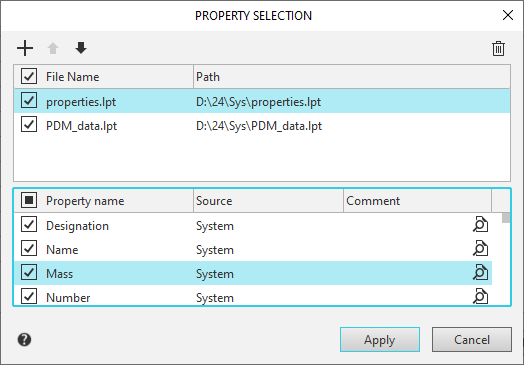
The dialog contains two windows - upper and lower.
•The top dialog box displays a list of property libraries, presented in table format. Each row in the table contains the library file name and path. At the beginning of each row is an option for connecting a library. When enabled, the properties contained in the library are displayed in the lower dialog box and become available for connection. The option in the row with the column headers connects all libraries in the list at once.
•The lower dialog box displays a list of local document properties and a list of properties of connected libraries, presented in table format. Each table row contains the property name and the path to the library file containing that style. At the beginning of the row is an option for connecting a property or all properties in the list at once (in the row with the column headers). The objects in the lower window can be sorted by any of the table columns. To select a column for sorting, click its header. A triangle appears next to the header, indicating the sorting direction. If the triangle points downward, the list is sorted in descending order; if the triangle points upward, the sorting is in ascending order.
Controls in the property list dialog box
The element |
Description of setting |
|
|
Add |
This button allows you to add a property library to the list. Clicking it displays a standard file selection dialog. |
|
Move up/down |
The buttons allow you to move property libraries in the list. To move a library up, select its name and click the Move up button. To move it down, click the Move down button. The selected library will move one position in the specified direction. |
|
View |
Allows you to view the parameters of the selected property. After clicking this button, a dialog box Property parameters in viewing mode. |
|
Delete |
The button allows you to exclude the selected library or property from the list. |


To add a property from a library to the list, connect the library in the top dialog box.
To customize the list, enable the options next to the requied properties in the lower dialog box. The property selected in the dialog box automatically becomes the selected property option in the column of the report table or version table.
To complete the settings, click Apply. To exit the dialog without saving changes, click Cancel.
