|
Property Parameters Dialog |
Scroll |
This dialog allows you to add a new property to a document's property list or property library, or edit or view the parameters of an existing property. Parameter editing is not available in preview mode.


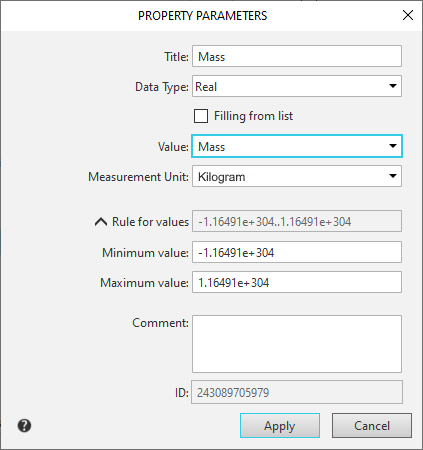
Description of controls
Name |
Description |
||
Name |
The field allows you to enter or change the name of the property. |
||
Data type |
The drop-down list allows you to select the type of property value — Integer, Real, String or Logical. The selected value type determines the availability of dialog controls. The value type is selected when creating a property and cannot be changed later. When editing a property, the list of value types is unavailable. |
||
Filling from list |
This option allows you to set the property value entry rule to select from a predefined list of values. To generate a list, enable this option. The value entry rule is specified when creating the property and cannot be changed later. This option is available in property creation mode for all value types except Logical. |
||
Value |
The drop-down list allows you to select the measured entity to which the property will be associated. After selecting a measured entity, its base unit of measurement becomes the property's unit of measurement and is displayed in the Measurement unit field. The measured entity is selected when creating the property and cannot be changed later. The list is available in property creation mode for Real or String values. |
||
Measurement unit |
The drop-down list allows you to select the unit of measurement for the property. It contains the units of measurement for the currently measured entity. The list is available for a property value of type Real or String. |
||
Rule for values |
A reference field displaying the rule for setting property values: a range of values or a list of values. Clicking on the field name expands/collapses the property value input fields. |
||
Minimum/ |
Fields for entering a range of property values. The default field values are determined by the system. You can change these values manually. Fields are available for a property of type Integer or Real if the Filling from list option is disabled. |
||
List of values |
This field allows you to create a predefined list of property values. Available for properties of type Integer, Real, or String if the Filling from list option is enabled. |
||
|
Add value |
The button allows you to add a value to the list. |
|
|
Move value up/down in the list |
The buttons allow you to move the value selected in the list one position up or down, respectively. |
|
|
Delete value |
The button allows you to delete a value. |
|
Comments |
A field for entering additional information about the property. |
||
ID |
This field displays the property ID. The ID is assigned automatically and cannot be changed by the user. |
||


To complete creating or editing a property, click the Apply button. The Cancel button closes the dialog without saving changes.
