|
System and document parameters |
Scroll |
The parameters of the system KOMPAS-3D and the current document are set in the Parameters dialog box called by the Settings — Parameters... command  . Setting of the current document is available if there is an open document; the set of setting parameters depends on the type of the current document. If no document is open, only the system parameters setting is available KOMPAS-3D
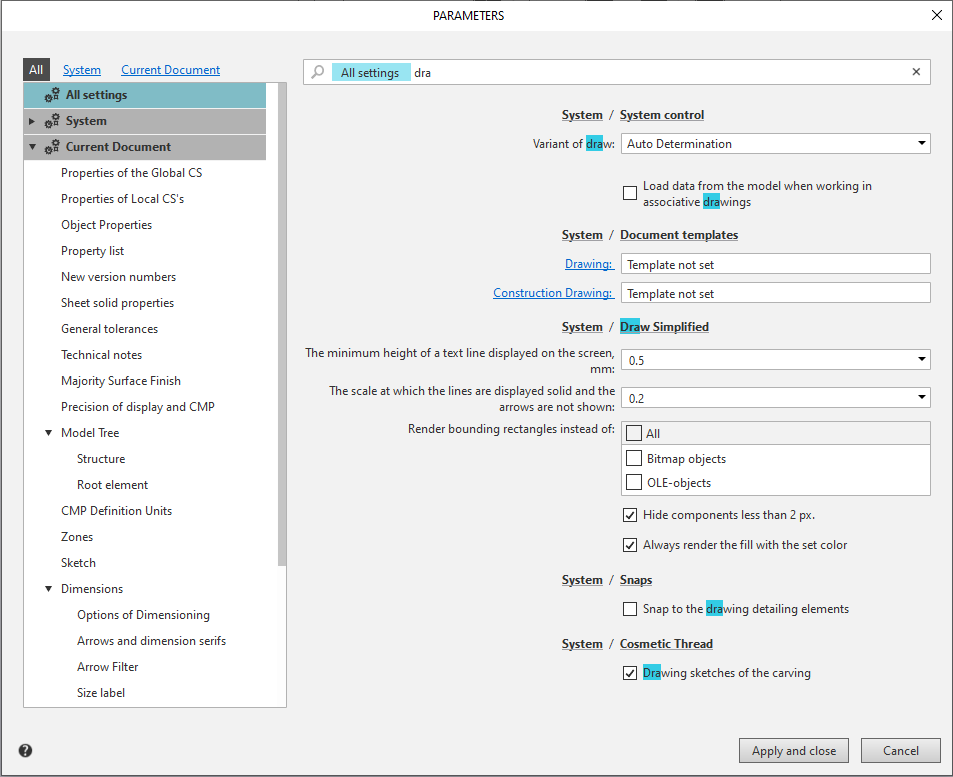
System and Current Document Settings Dialog
In the left part of the dialog box there is a structured list of setting sections. Above it there are links All, System and Current document, which control the display of the corresponding sections in the list. The System section is always present, and the Current document section is present only when there is an open document. For example, the figure above shows the Parameters dialog box called while working with a pattern.
The parameters are set in the right part of the dialog box using various controls (options, lists, etc.). If necessary, you can resize the dialog box by moving its borders with the mouse.
Methods of navigation in the settings dialog box:
•Selecting a section in the list
In the left part of the dialog box, select the desired settings section. The selected section becomes the current one — it is highlighted in the list in color. In the right part of the dialog box, controls related to the current section appear. You can change any of the displayed parameters.
•Scrolling the right part of the dialog box
Scroll the right part of the dialog box using the scroll bar or mouse wheel until the desired items become visible. Scrolling is performed from the beginning to the end of the current section. For example, if the current section is Current document — Sizes, you can scroll through all dimensions settings in the current document, and if the current section is All settings, you can scroll through all system settings and all settings in the current document.
You can change any of the parameters displayed in the right part of the dialog box. The current section will remain the same.
•Searching for a parameter by name
Enter the text you are looking for in the search line at the top of the dialog box —sections and parameters whose names include the specified text will be displayed in the right part of the dialog box (see the figure above for an example).
The search is performed within the current section —its name and the icon  are displayed at the beginning of the search line. To deselect a section, click the icon. The text «All settings» will appear instead of the section/item name and the search will be performed in all sections.
You can change any of the parameters displayed in the right part of the dialog box.
Setting the system parameters is described in the System parameters section, and setting the parameters of the current document is required in the Document parameters section.
When you have completed the settings, click the Apply and close button in the dialog box, and to exit the dialog box without saving the changes, click the Cancel button.
|
•Changes to some parameters take effect after restarting KOMPAS-3D. The necessity of restarting is specified in the description of such parameters. •Calling the help when working with the setup dialog opens the page related to the current, i.e. highlighted in the list, section — including if the dialog displays parameters from another section by searching or scrolling. To get help about these parameters, highlight the section containing them in the left part of the dialog box. In some sections, you can view an explanation of the parameter you are adjusting by hovering the mouse over its name. Such options are marked with the icon |


• |
