|
Property Management Dialog |
Scroll |
The dialog allows you to create new and edit existing properties of the current document, perform various operations with property libraries, make changes to the list of properties of the current document, turn on/off the display of properties in the list.


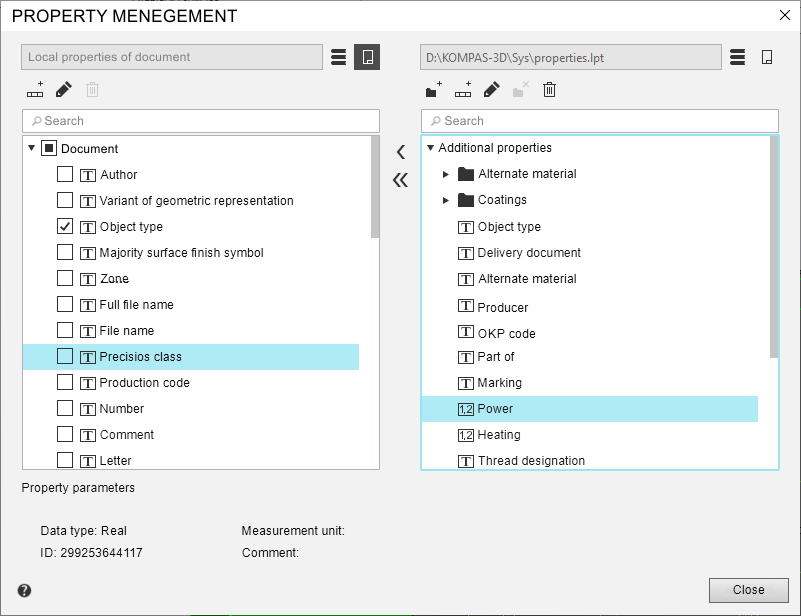
The dialog contains two preview windows, in which the list of properties of the current document or the selected property library is displayed. To perform various actions in the window, activate it with a mouse click. Buttons located between the windows will become available for work with the active window properties. The bottom of the dialog displays the parameters of the selected property: Data Type, Identifier, Unit of Measurement, and Comment.
Above each window is a search field where you can search for properties by name. To find the desired property, enter the desired characters in the search field, and then select the desired line from the list of search results that appears.
Description of Controls
|
Name |
Description |
|
Show Library |
The button allows you to display the contents of the property library in the active viewing window. Calls the standard Windows open file dialog. |
|
Show Document |
The button allows to display the list of properties of the current document in the active viewing window. If there are no open documents, the button is unavailable. |
|
Create Section |
The button allows you to add a new section to the property library. A section is added to the library, the contents of which are displayed in the active view window. After you click the button, a dialog appears on the screen in which you need to enter the name of the new section. To merge several properties into a section, select them from the list and click the Merge into Section button (the button will appear instead of the Create Section button). |
|
Destroy the partition |
To remove a section from the list, press this button. The section icon will be removed and the section contents will be displayed in its place in the list. The button is available if the section is selected in the list. |
|
Create Property |
The button allows you to add a property to the property list of a document or property library. Opens the Property parameters. The property is added to the list of properties displayed in the active view window. |
|
Preview |
The button allows you to view the parameters of the property specified in the list. Fetches the Property parameters dialog. In the View mode you cannot edit the data contained in this dialog box. |
|
Edit |
The button allows you to change the properties of a property or section of the property library specified in the list. Calls the property or section editing dialog. |
|
Delete |
The button allows you to delete the specified property or section of the property library. |
|
Copy left/right |
The button allows you to add a property to a document or property library. After clicking this button, the property selected in the active view window is copied to the adjacent window. Property can be copied •in the current document – from the property library or component of the current assembly (when working with assembly)/species inserts and fragments (when working with graphic document), •to the property library – from another library, current document or component of the current assembly (when working with an assembly) / insertions of views and fragments (when working with a graphic document). |
|
Move left/right |
The button allows the exchange of properties between property libraries and documents. After clicking this button, the selected property is transferred from the active viewing window to the neighboring window. The property can be transferred to the current document only from the property library, and to the library – from the current document or another library. |


To finish your work in the dialog, click the Close button.
